
PUBG Mobile problems, PUBG can run smoothly one day and suddenly become almost unplayable the next. You may experience FPS drops during fights, high ping even with a good internet connection, random crashes, a gyroscope that stops working, sensitivity settings that feel completely different, or a map download that refuses to finish.
What makes these PUBG Mobile problems problems frustrating is that the cause is not always obvious. A powerful phone does not automatically guarantee stable FPS, and a fast internet connection does not guarantee low ping. Sometimes the problem is caused by device temperature, background apps, graphics settings, corrupted resources, an update, or a temporary issue on PUBG’s side.
Recent PUBG Mobile player discussions show that these problems are still common. Players have reported severe frame drops after updates on devices capable of high refresh rates, freezes when shooting or encountering enemies, and sensitivity or ADS Gyroscope settings changing after updates.
This guide focuses on the problems players actually run into and the practical steps you can try before assuming that you need a new device or a faster internet connection. Read PUBG mobile is not working.
PUBG FPS Drops and Stuttering
One of the most frustrating PUBG problems is having a phone that should be powerful enough to run the game smoothly, yet experiencing sudden FPS drops.
You might see the game running normally in the lobby or training ground but becoming choppy when several players appear, during close-range fights, or after playing for several minutes.
Recent players have reported this exact pattern, including FPS instability on high-end devices and frame drops that became noticeable after game updates.
Try these fixes first
1. Use a stable graphics/FPS combination
If your priority is competitive gameplay, start with a lower graphics preset and the highest stable frame-rate option your device officially supports.
Don’t simply choose the highest graphics quality available. Higher graphics settings can increase GPU load and heat, which may eventually reduce performance.
2. Turn off unnecessary background apps
Close apps that are using RAM, CPU or network resources before launching PUBG.
PUBG Mobile’s official troubleshooting guidance specifically recommends closing other applications when dealing with crashes.
3. Check your phone temperature
If PUBG starts smoothly but becomes noticeably worse after 10–20 minutes, heat may be part of the problem.
When a device gets hot, its system can reduce processor performance to control temperature. Try removing a thick case, avoiding direct sunlight and allowing the phone to cool before another long session.
4. Don’t play while charging if your device becomes very hot
Charging and gaming together can increase heat. If your phone becomes noticeably hot while charging, let it cool down before continuing.
5. Test after an update
If PUBG worked normally before an update and immediately started stuttering afterward, don’t assume your phone suddenly became weak.
Recent community reports show that some updates have been followed by FPS and optimization complaints. In that situation, check for a subsequent patch and report the problem if it continues.
PUBG Is Lagging Even Though My Internet Is Good
This is another common source of confusion.
There are actually two different problems that players often call “lag.”
FPS lag means the game itself is not rendering frames smoothly.
Network lag means information between your device and the game server is delayed or interrupted.
If your ping looks normal but your character freezes, the screen becomes choppy, or FPS suddenly falls during a gunfight, the problem may be performance rather than your internet.
On the other hand, if your character moves backward, enemies teleport, shots register late, or your ping suddenly jumps, investigate the connection.
Recent players have reported increased ping and connection losses after updates, including cases where ping increased significantly despite previously working normally.
What to do
- Switch between Wi-Fi and mobile data to compare.
- Stop downloads and streaming on the same network.
- Move closer to your Wi-Fi router.
- Restart your router if the problem affects other devices too.
- Avoid using a VPN while testing your normal connection.
- Check whether the problem occurs on every server or only one.
- If the issue began immediately after an update, check PUBG’s official notices.
Don’t buy a new phone just because your ping is high. A faster processor cannot fix a routing or server connection problem.
PUBG Has High Ping After an Update
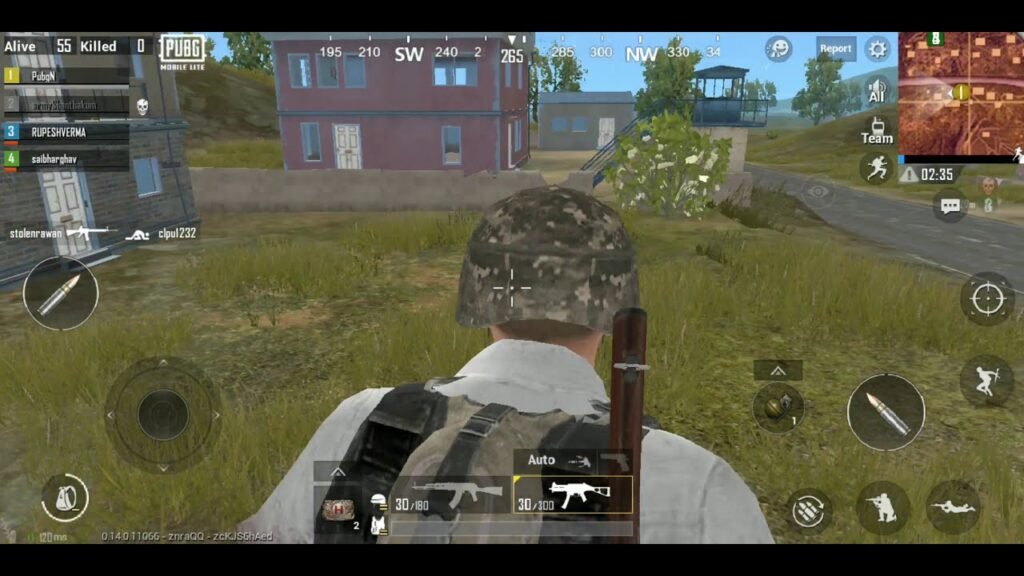
If your ping suddenly becomes much higher after a PUBG update, first determine whether the problem is local or server-related.
Try another network. If your ping remains unusually high on different connections while other online games work normally, the issue may not be your phone.
There have been community reports of connection problems appearing after updates, with PUBG Mobile staff responding that patches were being released to address some issues.
If the problem continues, report it through PUBG Mobile’s support system rather than repeatedly changing random phone settings.
PUBG Keeps Crashing or Closing
A PUBG crash can happen while launching the game, in the lobby, or in the middle of a match.
PUBG Mobile’s official help center recommends several basic troubleshooting steps:
- Close other applications.
- Update the device operating system.
- Check Wi-Fi or mobile data.
- Change the game’s graphics settings.
- Clear PUBG Mobile’s stored data/cache when appropriate.
If PUBG will not start at all, also check whether the game is undergoing server maintenance. The official help center notes that PUBG Mobile cannot be launched during server maintenance.
Before reinstalling PUBG
Don’t immediately uninstall the game.
First:
- Restart your phone.
- Check available storage.
- Update the operating system.
- Close background applications.
- Try lower graphics settings.
- Clear the game’s cache.
- Check whether other players are reporting the same problem.
Be particularly careful with guest accounts. PUBG Mobile warns that removing the game can result in the loss of guest account information.
PUBG Gyroscope Is Not Working
Gyroscope problems can be especially frustrating for players who rely on gyro aiming.
A common situation is that the gyroscope works normally while looking around but stops responding when firing.
Recent Reddit discussions show players encountering exactly this behavior. In one case, the problem was traced to the gyroscope settings associated with firing.
Check these settings
Open PUBG Mobile’s sensitivity and gyroscope settings and check:
- Gyroscope enabled/disabled status
- ADS Gyroscope settings
- Weapon-specific sensitivity
- Gyroscope sensitivity values
- Whether the problem occurs only while firing
- Whether settings changed after the latest update
If your gyro suddenly stopped working after an update, don’t immediately assume that your phone’s physical sensor is broken. Recent players have reported PUBG settings being reset or altered following updates.
PUBG Sensitivity Changed After an Update
If your aim suddenly feels too fast, too slow or completely different after an update, check your sensitivity before changing your entire play style.
Players have recently reported ADS, Gyroscope and custom sensitivity settings changing or resetting after updates.
This can make recoil control feel terrible even though you haven’t changed your technique.
What you should do?
Compare your current settings with your previous values.
Check:
- Camera sensitivity
- ADS sensitivity
- Gyroscope sensitivity
- ADS Gyroscope
- Weapon-specific settings
- Control layout
If you use sensitivity codes, remember that compatibility can depend on the game version. A community discussion also reported sensitivity-code import problems when the code came from a different version.
For competitive players, take screenshots or otherwise record your preferred settings before major updates. That makes it much easier to restore your setup if something gets reset.
PUBG Controls or Layout Changed
Imagine opening PUBG after an update and discovering that your fire button, controls or other settings don’t feel the same.
This isn’t just an inconvenience for experienced players. Muscle memory is built around exact button positions.
Recent players have reported control layouts and sensitivity settings being reset after updates.
Before playing a ranked match after a major update, open Training Ground and test:
- Fire buttons
- Scope buttons
- Crouch and prone
- Jump
- Peek
- Gyroscope
- Sensitivity
- Quick settings
A five-minute settings check can prevent a frustrating ranked match.
PUBG Map or Resource Download Is Stuck
Sometimes the game itself opens normally but a map or resource download gets stuck.
A recent player reported a Rondo download becoming stuck with only a few MB remaining, followed by a corrupted-resource message even after restarting and attempting repair.
Try this order
First, make sure you have enough free storage.
Then:
- Restart PUBG.
- Check your internet connection.
- Switch between Wi-Fi and mobile data.
- Open PUBG’s repair option if available.
- Retry the resource download.
- If the resource remains corrupted, consider reinstalling the game.
Avoid repeatedly deleting and reinstalling PUBG without first checking your account status and login method.
PUBG Voice Chat Is Not Working
If your teammates can hear some players but you cannot hear them, or voice chat becomes distorted, the problem may involve the game, microphone permissions, audio settings or another application.
Recent community discussions have included problems with PUBG’s built-in voice chat and unusual audio behavior during matches.
Try:
- Checking microphone permissions.
- Checking PUBG’s microphone and speaker settings.
- Disconnecting Bluetooth headphones temporarily.
- Closing Discord, Messenger or other voice applications.
- Restarting PUBG.
- Testing voice chat in another match.
If voice chat works normally outside PUBG but fails consistently inside the game, report the problem rather than assuming your microphone is damaged.
PUBG Gets Hot While Playing
Heat and performance are closely connected.
If PUBG starts at a stable frame rate and gradually becomes less smooth, device temperature should be one of the first things you investigate.
Try:
- Removing a thick phone case.
- Playing in a cooler environment.
- Avoiding direct sunlight.
- Not charging while playing if your device becomes hot.
- Reducing graphics load.
- Closing unnecessary background apps.
- Taking breaks during long sessions.
A cooling accessory may help some devices, but don’t treat it as a guaranteed solution. If the game remains unstable even when the device is cool, the problem may be software optimization or the game itself.
When PUBG Mobile Problems Are Probably Not Your Phone?
This is one of the most important things to understand.
If PUBG suddenly develops a problem immediately after an update, and many players using different devices report the same behavior, changing your phone may accomplish nothing.
Recent community reports have shown update-related complaints involving:
- FPS drops
- Freezing
- Sensitivity changes
- Gyroscope problems
- Connection problems
- Crashes
In these situations, look for an official announcement or later patch and submit a bug report if the problem persists.
PUBG Mobile’s official support recommends using the in-game Customer Service option for mobile-specific questions and problems.
A Quick PUBG Troubleshooting Checklist
When something suddenly goes wrong, don’t change ten settings at once.
Use this order:
Step 1: Restart PUBG.
Step 2: Restart your phone.
Step 3: Check your internet connection.
Step 4: Check device temperature.
Step 5: Close background applications.
Step 6: Check graphics and FPS settings.
Step 7: Check sensitivity and control settings.
Step 8: Check available storage.
Step 9: Check whether PUBG has released an update or hotfix.
Step 10: Check official PUBG Mobile notices and submit a bug report if the problem remains.
This approach makes it much easier to identify the actual cause instead of randomly changing settings.
Frequently Asked Questions
Why is PUBG lagging even on a powerful phone?
A powerful phone can still experience PUBG lag because of game optimization, device temperature, background processes, graphics settings or an update-related problem. Recent players have reported FPS instability on high-end devices, particularly after updates.
Why did my PUBG sensitivity change after the update?
Updates can sometimes be associated with changed or reset sensitivity, ADS Gyroscope or control settings. Check your sensitivity configuration before changing your playing technique. Recent community reports specifically mention these settings being affected after updates.
How do I fix PUBG Mobile crashes?
Start by closing background applications, updating your operating system, checking your connection, lowering graphics settings and clearing PUBG Mobile’s cache/data when appropriate. These are among the troubleshooting steps recommended by PUBG Mobile’s official help center.
Why is PUBG ping high but my internet is fast?
Internet speed and gaming latency are different. Your connection may have plenty of bandwidth while still experiencing high latency to the selected game server. Test another network and compare servers before assuming that you need faster internet.
Should I reinstall PUBG if it is lagging?
Not immediately. First check FPS settings, device temperature, background applications, storage and whether the issue started after an update. Reinstallation can help with corrupted game resources, but it is not a universal solution for performance problems.
Final Thoughts
PUBG problems are not always caused by a weak phone or bad internet.
If the game suddenly starts dropping FPS after an update, your sensitivity changes without explanation, the gyroscope stops responding, or PUBG begins crashing, first determine whether the problem is device-related, network-related, settings-related, corrupted-resource-related, or caused by the game itself.
That distinction can save you a lot of time.
Most importantly, don’t immediately buy a new phone, install questionable “FPS booster” tools or use unofficial game modifications. Start with the basic troubleshooting steps, test one change at a time, and use PUBG Mobile’s official support channels when the problem appears to be a genuine game bug.
For more Details you contact us and also check your Favorite game.
Our latest Problem solution Blogs to read:
1- Delta Force Game problems and solutions
2-Pubg mobile game not working problems and solutions
3-Pubg Mobile Keeps Crashing and how we can fix?
4-PUBG Mobile Shuttering problems and solutions and PUBG game Low FPS Problems.
Thank You


Pingback: Delta Force Problems and Solutions: Fix Lag, FPS & Ping in 2026
Pingback: PUBG Mobile Stuck on Loading Screen | 15 step-by-step Guide to Solve Issues.