
Call of Duty not launching is one of the more frustrating PC problems because the game may simply refuse to start without giving you a useful explanation.
You click Play, the launcher says Launching, a Call of Duty process appears briefly, and then everything disappears. Sometimes you get a black screen, a crash to desktop, a DirectX error, or a Safe Mode prompt. Other times, humanity receives absolutely no error message at all.
Recent player reports show that this problem can occur even on modern hardware. In August 2026, a player reported Call of Duty crashing during startup on both the Xbox PC app and Steam despite using an RTX 5070, Ryzen 5 7600X, 32 GB DDR5 RAM and an SSD. Other reports describe crashes appearing immediately after game updates, including DirectX-related errors.
This guide focuses on Call of Duty not launching, startup crashes, black screens and the most useful troubleshooting steps.
Find the Main Problems and solutions of Call of Duty Performance Issues.
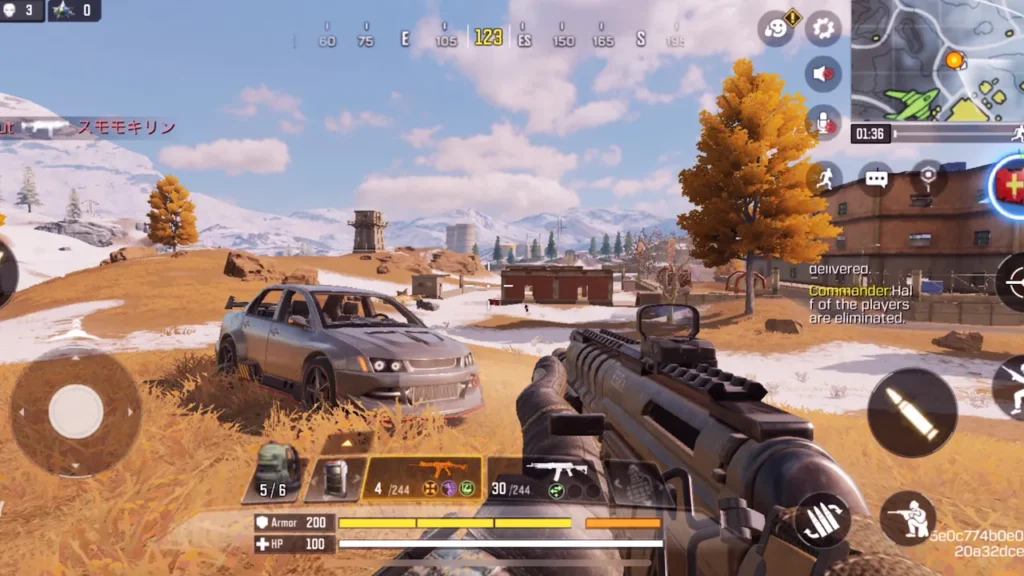
Why Is Call of Duty Not Launching?
There are several possible causes:
- Corrupted game files
- Broken launcher files
- GPU driver problems
- Windows compatibility problems
- Shader compilation problems
- Anti-cheat conflicts
- Third-party controller software
- Overlay conflicts
- Antivirus interference
- Damaged configuration files
- DirectX problems
- Visual C++ runtime problems
- Problems introduced by a game update
- Hardware instability
Because there are so many possibilities, don’t jump straight to reinstalling the entire game.
Start with the simplest diagnostic steps.
1. Restart Your PC First
Before changing anything else, completely restart Windows.
Don’t just:
- Close the launcher
- Reopen it
- Try again
Use:
Start → Power → Restart
Then launch Call of Duty again.
If Windows recently installed an update, restarted services or left a launcher process running in the background, a full reboot can clear the problem.
2. Check Whether Call of Duty Is Already Running
Sometimes the launcher thinks Call of Duty is running even though the game window never appears.
Press:
Ctrl + Shift + Esc
to open Task Manager.
Look for processes related to:
- Call of Duty
- COD
- Bootstrapper
- Your game launcher
If Call of Duty is stuck in the background, close the relevant process and try launching again.
This is particularly useful when pressing Play changes to Launching for a few seconds and then returns to Play. That exact behavior has been reported by PC players.
3. Verify the Game Files
This should be one of your first serious troubleshooting steps.
Game files can become corrupted after:
- Updates
- Crashes
- Interrupted downloads
- Storage problems
- Launcher errors
Steam
Use Steam’s Verify Integrity of Game Files option.
Battle.net
Use the Scan and Repair function.
Xbox App
Use the game’s management options to repair or verify the installation.
A recent Black Ops 7 startup-crash report showed players trying verification without success, but the repair process remains a sensible first diagnostic step because damaged files can absolutely prevent startup.
you can find Call of Duty Performance Issues article because corrupted files and updates can also cause performance problems and Call of Duty launch problems.
4. Restart the Launcher
Completely close:
- Steam
- Battle.net
- Xbox App
Also check Task Manager to make sure the launcher isn’t still running.
Then reopen it and launch Call of Duty.
This is particularly useful when the launcher itself is stuck.
5. Update Your GPU Driver
A graphics driver problem can cause Call of Duty to:
- Crash immediately
- Display a black screen
- Crash during shader loading
- Crash during startup
- Produce DirectX errors
Check the official driver software for your GPU.
For NVIDIA:
- Open NVIDIA’s driver software
- Check for available updates
For AMD:
- Open AMD’s driver software
- Check for available updates
But there is an important exception.
If Call of Duty worked before a driver update and stopped immediately afterward, the newest driver may actually be part of the problem.
A 2026 Black Ops 7 discussion included players reporting crashes after an update and some users experimenting with different driver versions.
6. Check Windows Updates
Make sure Windows is fully updated.
Call of Duty relies on:
- DirectX components
- Windows graphics components
- Security components
- System libraries
A compatibility issue between Windows and the game can prevent startup.
However, if Call of Duty stopped launching immediately after a Windows update, investigate that update as well.
This distinction matters because “update everything” isn’t always the correct answer when the update itself introduced the problem.
7. Let Shader Preloading Finish
Call of Duty uses shader compilation/preloading, and Activision’s PC troubleshooting guidance recommends allowing shader preloading to complete before playing.
After an update or driver change:
- Launch Call of Duty.
- Stay in the main menu.
- Allow shader processing to finish.
- Don’t repeatedly close the game during the process.
- Restart the game if necessary.
- Test again.
Shader-related startup problems have also appeared in community reports where players experienced crashes shortly after launching.
8. Disable Third-Party Controller Software
This is an important troubleshooting step that many generic guides completely ignore.
Third-party controller and input programs can sometimes interfere with games or anti-cheat systems.
Examples include software that:
- Emulates controllers
- Remaps inputs
- Creates virtual controllers
- Modifies game input
A Steam discussion specifically reported that uninstalling reWASD resolved a Call of Duty startup crash for one player. Other players in the same discussion reported similar behavior.
This doesn’t mean reWASD is universally responsible.
It means that if you use third-party input software, temporarily disable or uninstall it as a diagnostic test.
9. Disable Overlays
Temporarily disable:
- Discord Overlay
- Steam Overlay
- NVIDIA Overlay
- AMD Overlay
- Xbox Game Bar
- MSI Afterburner/RivaTuner overlays
- Recording overlays
Then try launching Call of Duty.
If the game starts normally, re-enable overlays one at a time.
This helps identify conflicts instead of permanently disabling features you actually use.
10. Check Antivirus and Firewall
Security software can occasionally interfere with game executables, anti-cheat components or launcher processes.
Don’t immediately disable your entire antivirus permanently.
Instead:
- Check whether Call of Duty or its launcher has been blocked.
- Check Windows Security notifications.
- Verify that the game and launcher are permitted.
- Temporarily test with appropriate protection exceptions if necessary.
Only use trusted official game files.
11. Run the Launcher Normally First
You may find guides telling you to run everything as administrator.
That isn’t always necessary.
Start by launching normally.
If there is a specific permission error, then test administrator privileges.
Avoid permanently running every game and launcher as administrator unless there is a genuine reason.
12. Check Your Game Installation Drive
Call of Duty should preferably be installed on a fast SSD.
Check:
- Available storage
- Drive health
- File-system errors
- Whether the drive is almost full
A recent Steam discussion described a player whose Call of Duty behaved differently depending on whether it was installed on an HDD or SSD.
If the game is on an SSD already and the drive has plenty of free space, storage is less likely to be the cause.
13. Remove Problematic Configuration Files
Sometimes the game itself launches but crashes because of a damaged configuration.
This can happen after:
- Changing graphics settings
- Switching GPUs
- Updating drivers
- Game patches
- Crashes during configuration saving
Before deleting anything, make a backup.
Don’t blindly delete every folder containing “Call of Duty.”
Community troubleshooting reports include players finding that configuration-related files were involved in launch problems, but the exact location and files vary between titles and versions.
14. Try Safe Mode If Call of Duty Offers It
If the game asks:
“Do you want to start in Safe Mode?”
Safe Mode can be useful when a previous graphics configuration is causing startup problems.
If the game successfully opens in Safe Mode:
- Enter the game.
- Let shaders finish.
- Reset graphics settings.
- Restart normally.
- Gradually configure your settings again.
If Safe Mode also crashes, the problem probably isn’t just a bad graphics configuration.
15. Check for DirectX Errors
DirectX-related crashes are frequently mentioned in Call of Duty community troubleshooting.
A recent 2026 report described DirectX errors appearing after a Call of Duty update.
If you receive a DirectX error:
- Update your GPU driver
- Update Windows
- Verify game files
- Remove unstable GPU/CPU overclocks
- Check temperatures
- Disable aggressive undervolting
- Test without overlays
Don’t immediately download random “DirectX DLL fix” files from questionable websites.
That is how one computer problem becomes three.
16. Disable Overclocking and Undervolting Temporarily
If your:
- GPU
- CPU
- RAM
is overclocked or undervolted, return it temporarily to stock settings.
This is especially important if:
Call of Duty crashes
but:
Other games appear stable.
A game can expose instability that another workload doesn’t.
A 2026 community discussion about repeated Black Ops 7 crashes included players testing with CPU and GPU undervolts disabled.
Don’t change BIOS settings randomly. Use stock settings as a diagnostic baseline.
17. Check Your RAM Stability
Unstable RAM can cause:
- Random crashes
- Game startup failures
- Blue screens
- Application crashes
If you recently changed:
- XMP
- EXPO
- RAM frequency
- RAM timings
temporarily return to a stable configuration.
If Call of Duty suddenly starts working, you’ve identified an important clue.
18. Repair Windows System Files
If several applications are crashing, the problem may not be Call of Duty.
Windows provides built-in system repair tools such as:
- System File Checker
- DISM
These can be useful when Windows system components are damaged.
This step makes more sense when:
- Multiple games crash
- Windows applications crash
- System files appear corrupted
- You recently had an interrupted update
If only Call of Duty crashes while everything else works, investigate the game first.
19. Test Without VPN or Network Tools
If Call of Duty gets stuck during:
- Connecting to online services
- Data verification
- Account authentication
temporarily disable:
- VPN
- Traffic filtering software
- Network modification tools
- Unusual DNS/proxy software
A 2026 Modern Warfare community report described a startup problem being resolved after uninstalling a network-related application.
Again, don’t assume the same application is responsible for every player.
The point is to eliminate unusual software from the troubleshooting chain.
20. Check Whether the Problem Started After a Call of Duty Update
This should always be part of your diagnosis.
Ask:
Did Call of Duty launch successfully before the update?
If yes, and it stopped immediately afterward, search for current reports.
Recent community reports have described startup crashes appearing after updates, including crashes to desktop immediately after launch.
If many players report the same behavior, waiting for a developer-side fix may be more sensible than reinstalling Windows.
Call of Duty Not Launching Quick Fix Table
| Problem | First thing to try |
|---|---|
| Play button returns to Play | Restart launcher + verify files |
| Black screen | GPU driver + Safe Mode |
| Crash immediately | Verify files + drivers |
| DirectX crash | Driver + stock hardware settings |
| Crash after update | Check current reports |
| Safe Mode works | Reset graphics settings |
| Controller software installed | Disable third-party input software |
| Overlay enabled | Disable overlays |
| Game stuck in background | End COD processes |
| Game crashes on shader loading | Allow shader preloading |
| Only COD crashes | Investigate game-specific software |
| Multiple games crash | Investigate Windows/hardware |
Frequently Asked Questions
Why is Call of Duty not launching on PC?
Common causes include corrupted game files, graphics drivers, shader problems, third-party software, configuration corruption, anti-cheat conflicts, Windows issues, or a problem introduced by a game update.
Why does Call of Duty open and then close?
If the launcher briefly shows “Launching” and then returns to “Play,” the game may be crashing during initialization. Verify the files, update or test the GPU driver, disable overlays and third-party input software, and check for current game issues.
Why does Call of Duty crash without an error?
Some crashes occur before the game can display a useful error message. Check Windows Event Viewer or game crash logs if basic troubleshooting doesn’t identify the problem.
Can outdated GPU drivers stop Call of Duty from launching?
Yes. Driver compatibility problems can cause startup crashes and graphical initialization failures. Updating the appropriate driver is one of the standard troubleshooting steps.
Can controller software cause Call of Duty to crash?
It can on some systems. Community reports have linked third-party controller/input software with Call of Duty startup crashes.
Should I reinstall Call of Duty if it won’t launch?
Not immediately. Verify or repair the game files first, check drivers and software conflicts, and determine whether the problem began after an update. Reinstalling should be a later troubleshooting step.
Final Call of Duty Not Launching Checklist
If Call of Duty is not launching, work through these steps in order:
- Restart Windows.
- Completely close the launcher.
- Check Task Manager for stuck COD processes.
- Verify/repair game files.
- Update or test your GPU driver.
- Update Windows.
- Allow shader preloading to finish.
- Disable overlays.
- Disable third-party controller software.
- Check antivirus/firewall blocks.
- Try Safe Mode if offered.
- Check DirectX errors.
- Return CPU/GPU/RAM to stock settings.
- Check the game installation drive.
- Test configuration files carefully.
- Repair Windows system files if other programs are also crashing.
- Disable VPN/network modification software.
- Check whether the problem started after a recent update.
The important thing is to diagnose the failure point. If Call of Duty never creates a game window, investigate startup, launcher, drivers and software conflicts. If it reaches the menu and then crashes, investigate shaders, graphics settings, hardware stability and game files. If it crashes only during matches, that’s a different problem entirely.
Make sure to explore : Call of Duty Lag Fix → general Call of Duty troubleshooting
Call of Duty Low FPS → performance-related problems
Call of Duty High Ping → connection-related problems
Call of Duty crashing Issues → More detail guide on call of duty Crashing issues.
Thank You

