
If you are dealing with Free Fire high ping, the first thing you should know is that fast internet does not automatically mean low ping.
You can have a fast fiber connection and still experience 100 ms, 200 ms, or even higher latency in Free Fire if your connection is unstable, your traffic is being routed through a distant server, your Wi-Fi is congested, or the game places you on a server far from your location.
Garena itself has acknowledged that server distribution can contribute to high ping. Because Free Fire serves many countries, some countries share servers to keep matchmaking times reasonable. Garena explained that this arrangement can create high-ping problems for some players.
Players have also reported situations where changing networks did not solve the problem because multiple Free Fire players in the same region were experiencing similar latency. A recent UAE discussion described ping jumping from around 100 ms to extremely high values even while the connection appeared excellent, with players suspecting regional routing rather than ordinary home Wi-Fi problems.
So if Free Fire high ping is ruining your matches, don’t immediately blame your phone. Explore more about Free Fire problems and Solutions
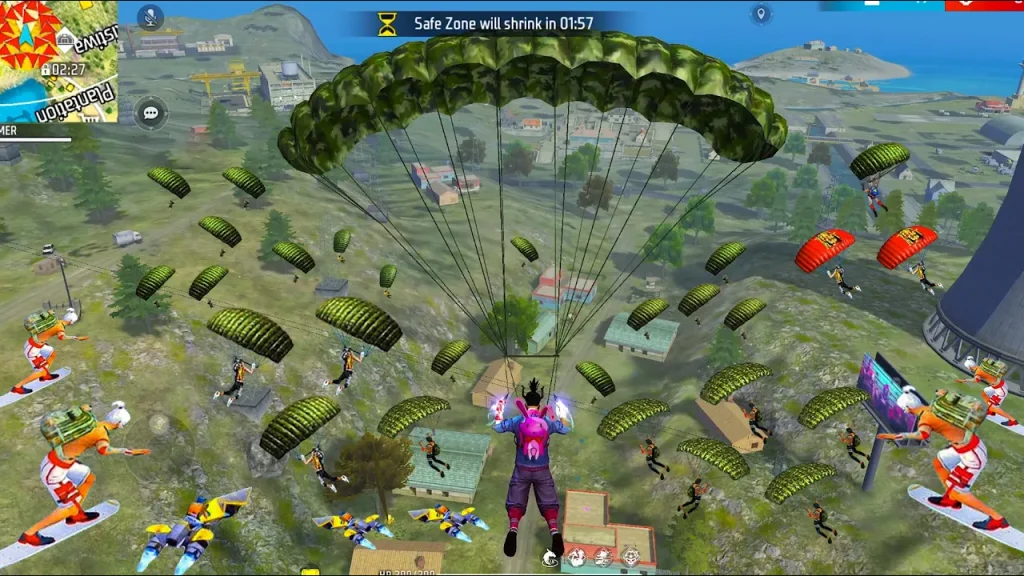
Let’s identify where the problem actually comes from.
What Is Considered High Ping in Free Fire?
Ping is the approximate time required for information to travel between your device and the game server.
A simplified way to look at it is:
| Ping | What you may experience |
|---|---|
| 20–50 ms | Usually very responsive |
| 50–80 ms | Generally playable |
| 80–120 ms | Noticeable delay may appear |
| 120–150 ms | Increasingly noticeable |
| 150–200 ms | Significant latency |
| 200+ ms | Severe delay and rubber-banding |
| 300+ ms | Usually very difficult to play |
These are practical ranges, not universal rules.
Garena has previously described 150 ms or below as an ideal target for Free Fire connection quality.
More importantly, don’t judge your connection using one momentary ping number.
A stable 90 ms connection can sometimes feel better than a connection jumping between:
40 → 180 → 70 → 250 ms
That instability is often what makes gameplay feel broken.
Why Is Free Fire Ping So High?
The most common causes include:
- Weak Wi-Fi
- Mobile network instability
- Too many devices using the network
- Background downloads
- Packet loss
- ISP routing problems
- Distant game servers
- Regional server problems
- VPN routing
- Network congestion
- Game-side server issues
- Poor cellular signal
Garena has specifically acknowledged that high ping can result from the way servers are shared between countries.
That means there are situations where changing your router will not completely solve the problem.
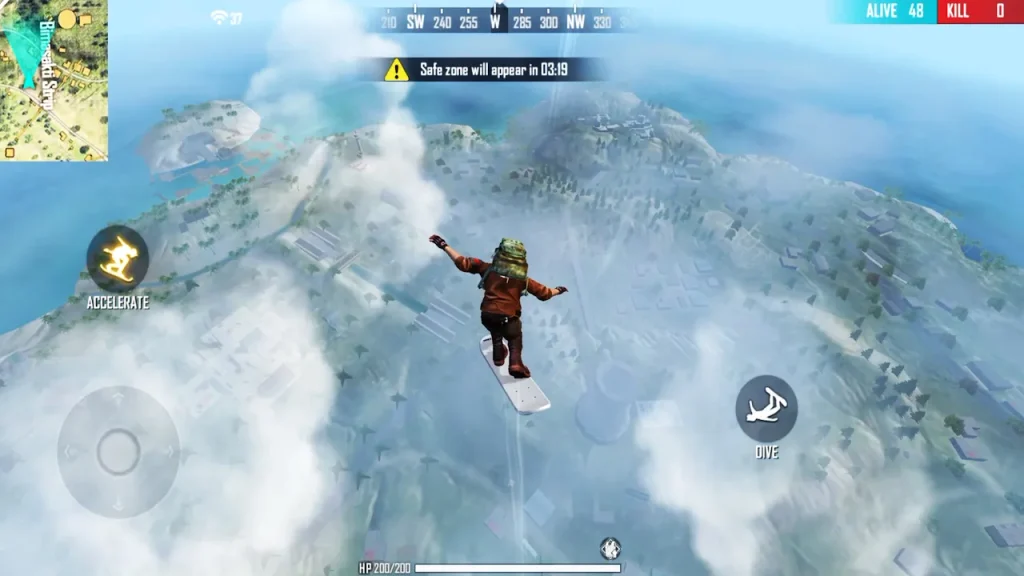
1. Check Your Ping Before Starting a Match
Don’t wait until you’re already fighting another player.
Free Fire has a connection indicator in the lobby. Garena added this specifically so players can check their connection before entering a match.
Before starting a match, check the connection indicator.
If the connection already looks poor:
Don’t immediately start a ranked match.
First stabilize your connection.
This is especially useful because it tells you whether the problem exists before matchmaking begins.
2. Determine Whether Your Ping Is Constant or Spiking
This is one of the most important tests.
Constantly high ping
Example:
120–140 ms every match
This can indicate:
- Server distance
- Regional routing
- ISP routing
- Your normal network path
Ping spikes
Example:
40 ms → 250 ms → 60 ms → 300 ms
This points more toward:
- Wi-Fi instability
- Packet loss
- Network congestion
- Mobile signal changes
- Background traffic
- ISP instability
Don’t treat these two situations as identical.
They require different troubleshooting.
3. Restart Your Router
If you are using Wi-Fi, restart your router.
Turn it off.
Wait approximately 30 seconds.
Turn it back on.
Wait until the connection is fully restored before launching Free Fire.
This can clear temporary router problems.
However, if Free Fire high ping returns after a few matches, don’t keep restarting the router every 20 minutes.
That isn’t troubleshooting.
That’s a ritual.
Move to the next test.
4. Move Closer to Your Wi-Fi Router
If you play Free Fire over Wi-Fi, distance matters.
Walls, floors, furniture and interference can reduce wireless stability.
Try playing:
- Close to the router
- In the same room
- Away from thick walls
- Away from other wireless equipment
Then compare your ping.
If your ping becomes stable when you’re close to the router, your wireless connection is likely contributing to the problem.
5. Test Mobile Data Instead of Wi-Fi
This is one of the best ways to identify the source of Free Fire high ping.
Suppose:
Wi-Fi: 180 ms
Mobile data: 50 ms
Your Free Fire account and phone are probably not the main problem.
Your Wi-Fi connection or ISP deserves investigation.
Now reverse the result:
Wi-Fi: 50 ms
Mobile data: 180 ms
The cellular network is probably the weaker connection.
Don’t change five settings when one controlled test can give you this information.
6. Check Whether Other Games Have High Ping
Play another online multiplayer game using the same connection.
For example:
Free Fire: 180 ms
Another game: 35 ms
This doesn’t prove Free Fire’s servers are broken, but it tells you something important.
Your general internet connection may be functioning normally while your route to Free Fire is problematic.
This becomes particularly important when other apps and websites work normally.
7. Stop Background Downloads
Before playing Free Fire, stop anything consuming your network.
Check for:
- App updates
- Google Play downloads
- Windows updates
- Cloud backups
- Video uploads
- Large file downloads
- Other game updates
- Torrent applications
Also check other devices connected to your Wi-Fi.
A phone downloading a large update can affect the connection available to your gaming device.
8. Disconnect Unnecessary Devices
If ten devices are connected to one router, don’t be surprised when the network behaves like a crowded bus.
Temporarily disconnect devices you aren’t using.
Test Free Fire again.
If the ping improves, network congestion may have been involved.
This is especially important on slower connections or inexpensive routers.
9. Check Your Mobile Signal
For players using mobile data, signal strength matters.
A strong-looking cellular icon does not always guarantee stable latency.
Try testing from:
- Another room
- Near a window
- Outdoors
- Another location with better signal
Then compare the results.
If Free Fire ping changes dramatically depending on your physical location, your cellular connection may be responsible.
10. Switch Between 4G and 5G
If your phone supports both 4G and 5G, test them separately.
Don’t assume:
5G = automatically better gaming ping.
A 5G connection can sometimes be less stable in a particular location than a strong 4G connection.
Test:
4G → Free Fire ping
Then:
5G → Free Fire ping
Keep the connection that provides the more stable result.
The goal isn’t maximum theoretical speed.
The goal is stable latency.
11. Don’t Use a VPN as Your First Fix
You will find plenty of people recommending a VPN for Free Fire high ping.
Treat that advice carefully.
A VPN changes your route to the game server.
Sometimes that route can be better.
Sometimes it can be significantly worse.
For example:
Normal connection: 80 ms
VPN: 150 ms
The VPN made things worse.
But:
Normal connection: 180 ms
VPN: 95 ms
That suggests the VPN may have found a better route.
The important point is that a VPN isn’t a guaranteed ping reducer.
Test it.
Don’t blindly assume it works.
12. Check Your Server or Region
Server location is one of the biggest factors in latency.
If you’re physically far from the server, there is a limit to how low your ping can realistically become.
Garena has openly discussed this problem.
The company explained that Free Fire uses shared servers for multiple countries in some cases, particularly where player populations are smaller. Garena acknowledged that this can lead to higher ping for some players.
This explains why two players with similar internet packages can have very different Free Fire ping.
Can You Manually Change Free Fire Servers?
This depends on the current version and regional configuration of Free Fire.
Don’t follow outdated tutorials telling you to edit random configuration files or use unofficial tools to force another region.
Even if such methods appear in videos, they may stop working after an update or create additional connection problems.
Instead, first determine whether your high ping is actually regional.
13. Check Whether Players in Your Region Have the Same Problem
This is one of the strongest tests for identifying server-side problems.
Search:
Free Fire high ping + your country
or:
Free Fire ping problem today + your region
Look at recent community reports.
If dozens of players from the same region suddenly report:
- 100+ ms ping
- 200+ ms ping
- Ping spikes
- Server changes
- Rubber-banding
then your personal Wi-Fi may not be the main problem.
Recent Free Fire discussions from the UAE and other regions show players reporting high latency despite changing networks, with some users pointing toward regional server routing.
14. Regional Server Problems Can Be Real
This is where generic gaming advice often fails.
One Free Fire community discussion from North Africa described players being moved from closer servers to Middle Eastern servers, with users reporting major increases in latency. Some players described going from roughly 18 ms to 160–220 ms.
Whether every detail in that discussion is technically correct is another matter.
But the pattern is important:
Multiple players in the same geographic region experiencing the same sudden ping increase deserves investigation as a server/routing problem.
Don’t automatically tell every player to restart their router.
15. Test at Different Times
Network routing and congestion can change during the day.
Test Free Fire at:
- Morning
- Afternoon
- Evening
- Late night
Record your ping.
Example:
| Time | Ping |
|---|---|
| 9 AM | 45 ms |
| 2 PM | 50 ms |
| 7 PM | 120 ms |
| 10 PM | 180 ms |
| 1 AM | 55 ms |
If this pattern repeats, peak-hour congestion becomes a strong possibility.
It could be:
- Your ISP
- Your local network
- Regional routing
- Game-server load
The test doesn’t automatically identify which one, but it gives you evidence.
16. Check for Packet Loss
High ping and packet loss are different problems.
You can sometimes have relatively normal ping while still experiencing packet loss.
Symptoms include:
- Character teleporting
- Rubber-banding
- Delayed shooting
- Sudden movement
- Missed hit registration
- Short freezes
- Disconnects
Garena has also discussed how high ping can create unusual movement and damage behavior in Free Fire. The company specifically noted that players experiencing high ping can appear to “teleport” because their movement updates reach the server late.
So if your character suddenly jumps backward or forward, don’t automatically assume someone is hacking.
Network latency can produce bizarre-looking gameplay.
17. Restart Free Fire After Changing Networks
If you switch from:
Wi-Fi → mobile data
or:
VPN → normal connection
completely close Free Fire.
Then launch it again.
This gives the game a fresh connection session.
Otherwise you may be testing a new network while the game still has an existing connection state.
18. Keep Free Fire Updated
If a new version is available, install it.
Garena has repeatedly released updates containing network and gameplay optimizations. The company has also previously introduced changes specifically aimed at high-ping behavior and connection feedback.
However, if your ping suddenly became bad immediately after an update, don’t assume the update will automatically fix it.
Check recent player reports.
If many players began reporting the same problem after the same update, it may be a game-side issue.
19. Check the Free Fire Connection Indicator
Garena added a connection status display to the lobby so players can identify poor connectivity before starting a match. In Garena’s patch documentation, the connection indicator changes based on network quality, allowing players to decide whether to proceed with matchmaking.
Use that indicator as an early warning.
If it consistently shows poor connection before you enter a match, troubleshoot your network first.
20. Don’t Change DNS Just Because Someone Said It Lowers Ping
Changing DNS is frequently recommended in gaming videos.
DNS can affect how domains are resolved, but it generally isn’t a magic solution for in-match latency.
If your actual game traffic is already routed through a poor path, changing DNS may make little or no difference.
Test it if you want.
But don’t expect:
DNS change → 150 ms → 20 ms
That isn’t how network latency normally works.
21. Check Your ISP Routing
If:
- Other games work normally
- Websites work normally
- Free Fire consistently has high ping
- VPN changes the result
- Different devices show the same Free Fire problem
your ISP’s route toward Free Fire’s servers may be involved.
This is particularly important when your ping is consistently high rather than randomly spiking.
Contact your ISP with evidence instead of simply saying:
“My game is lagging.”
Give them:
- Your location
- ISP name
- Approximate ping
- Time of day
- Whether other games work
- Whether VPN changes latency
- Whether the problem affects multiple devices
That gives technical support something useful to investigate.
22. Free Fire High Ping on Wi-Fi but Normal on Mobile Data
This is a very useful diagnostic pattern.
Wi-Fi
180 ms
Mobile data
50 ms
Likely areas to investigate:
- Router
- Wi-Fi interference
- ISP routing
- Home network congestion
Don’t immediately reinstall Free Fire.
The application didn’t suddenly become allergic to Wi-Fi.
23. Free Fire High Ping on Both Wi-Fi and Mobile Data
Now the situation changes.
If:
Wi-Fi: 180 ms
Mobile: 170 ms
and both connections are being used in the same region, investigate:
- Regional server selection
- Free Fire server routing
- Current game-side issues
- Regional ISP problems
- Recent updates
If multiple players nearby report the same problem, the evidence becomes stronger for a broader issue.
24. Free Fire High Ping but Other Games Are Normal
This is one of the strongest clues.
Suppose:
| Game | Ping |
|---|---|
| Free Fire | 160 ms |
| Game 2 | 35 ms |
| Game 3 | 40 ms |
Your internet is clearly capable of delivering lower latency.
That does not automatically mean Free Fire is broken.
It means you should investigate the route and server used by Free Fire instead of repeatedly restarting your router.
25. Free Fire High Ping During Peak Hours
If your ping is fine in the morning but terrible at night, investigate congestion.
Test several days.
If the pattern remains:
Low ping outside peak hours
High ping during peak hours
contact your ISP if other services also slow down.
If only Free Fire is affected, investigate the game’s regional routing and server situation.
26. Does Free Fire High Ping Affect Gameplay?
Absolutely.
High latency can produce:
- Delayed shooting
- Delayed movement
- Poor hit registration
- Rubber-banding
- Teleport-like movement
- Delayed Gloo Wall placement
- Enemies appearing to move strangely
- Actions registering late
Garena has specifically acknowledged that high ping can create unusual movement and damage behavior.
This is why a player can feel that the game is “broken” even though the FPS counter looks perfectly normal.
Free Fire High Ping Troubleshooting Table
| What you see | What to investigate |
|---|---|
| Constant 150+ ms | Server distance/routing |
| Ping jumps suddenly | Wi-Fi/packet loss |
| High ping only on Wi-Fi | Router/ISP |
| High ping only on mobile data | Cellular network |
| High ping every evening | Congestion |
| Other games normal | Free Fire route/server |
| Everyone in your region affected | Regional/server issue |
| VPN improves ping | Possible routing problem |
| VPN makes ping worse | Remove VPN |
| Normal ping but game freezes | FPS/stuttering issue |
| Rubber-banding | Packet loss/latency |
| Ping high after update | Check current reports |
A Better Way to Diagnose Free Fire High Ping
Instead of changing everything at once, perform these tests in order.
Test 1: Check lobby connection
Record the ping/connection indicator.
Test 2: Test Wi-Fi
Play one match.
Record the result.
Test 3: Test mobile data
Play under similar conditions.
Test 4: Test another game
Compare latency.
Test 5: Test another time
Check whether peak hours change the result.
Test 6: Check community reports
Search your region for recent Free Fire ping complaints.
Test 7: Test VPN only if necessary
Compare the route rather than assuming a VPN helps.
After these tests, you should have a much clearer picture of whether the problem is:
Your device → your Wi-Fi → your ISP → regional routing → Free Fire servers.
Free Fire High Ping vs Free Fire Lag
These terms are often used interchangeably, but they aren’t exactly the same.
High Ping
Network latency is high.
Typical symptoms:
- Delayed actions
- Rubber-banding
- Hit registration delay
- Teleporting movement
FPS Lag
Your device cannot render frames smoothly.
Typical symptoms:
- Low FPS
- Screen stuttering
- Choppy camera movement
- Frame drops
If your ping is:
40 ms
but your FPS is:
25
your internet is probably not the main problem.
For that situation, our [Free Fire Problems and Solutions] article is the better starting point.
Frequently Asked Questions
Why is my Free Fire ping so high?
Free Fire high ping can be caused by unstable Wi-Fi, mobile network problems, packet loss, congestion, ISP routing, distant servers or regional server conditions. Garena has also acknowledged that sharing servers across multiple countries can contribute to higher ping.
Is 100 ms ping bad in Free Fire?
100 ms is playable for many players, but it introduces more latency than a 20–50 ms connection. Whether it feels acceptable depends on the game mode, network stability and your expectations.
Is 150 ms ping good for Free Fire?
Garena has previously described 150 ms or below as an ideal connection target. Lower and more stable ping is generally preferable for competitive gameplay.
Why is Free Fire high ping when my internet is fast?
Internet speed and latency are different measurements. You can have high download speed but a poor route to the Free Fire server.
Why does Free Fire ping suddenly jump?
Sudden spikes can result from Wi-Fi interference, packet loss, network congestion, mobile signal changes, ISP routing or server-side problems.
Why does Free Fire have high ping only at night?
If the pattern repeats every evening, network congestion becomes a possibility. Test at several different times before deciding whether the problem is your ISP or the game server.
Can a VPN reduce Free Fire ping?
Sometimes, but not reliably. A VPN can provide a different route to the server. If that route is better, latency may decrease. If it is worse, ping will increase.
Why does Free Fire show high ping on both Wi-Fi and mobile data?
If both connections produce similar high latency, investigate regional server routing and current Free Fire network conditions. If other players in your region report the same problem, the issue may not be limited to your device.
Does high ping cause Free Fire teleporting?
It can. Garena has explicitly explained that high ping can cause movement to appear like teleportation because updates reach the server late.
Does high ping mean my phone is slow?
No. Ping measures network latency, while device performance affects FPS and rendering. A powerful phone can still have terrible ping.
Final Thoughts
The best Free Fire high ping fix depends on identifying where the latency begins.
If only your Wi-Fi is affected, investigate your router and local network.
If mobile data is also bad, investigate the cellular network or regional conditions.
If every game except Free Fire works normally, investigate Free Fire’s server route.
If players across your region suddenly report the same problem, don’t waste hours changing graphics settings. Investigate the server side.
And if the ping is normal but the game still feels choppy, you’re probably dealing with an FPS or stuttering problem rather than high ping.
The most useful troubleshooting sequence is:
Check the lobby → test Wi-Fi → test mobile data → compare another game → test another time → check regional reports → investigate routing.
That gives you evidence instead of the usual internet advice of “restart router and change DNS,” which somehow survives every generation of gaming technology.
Thank you

