
Blood Strike can run smoothly for one player and become frustratingly unstable for another. The confusing part is that the problem is not always caused by weak hardware.
Players have reported high ping despite otherwise good connections, mouse input delay even when FPS looks acceptable, sudden frame drops, freezing after playing for several minutes, and crashes that can completely lock the PC.
That makes troubleshooting Blood Strike slightly more complicated than simply lowering graphics settings.
This guide breaks down the most common Blood Strike problems and solutions and focuses on practical tests that can help you identify whether the cause is your network, Windows, graphics settings, drivers, background software, or Blood Strike itself.
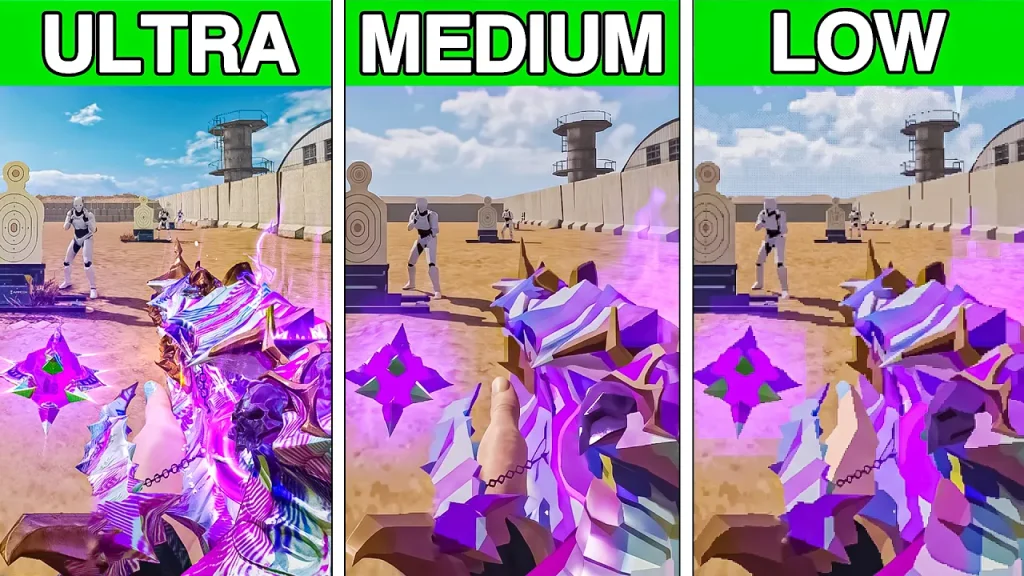
Common Blood Strike Problems and Solutions on PC
The most frequently reported problems include:
| Problem | Typical symptom | First thing to investigate |
|---|---|---|
| Blood Strike lag | Delayed movement or gameplay | Network + frame time |
| High ping | Ping suddenly jumps | Server/network routing |
| Stuttering | Short freezes or uneven movement | FPS/frame time |
| FPS drops | FPS falls during combat | GPU/CPU/settings |
| Input delay | Mouse feels slow or delayed | V-Sync, FPS, display settings |
| Crashing | Game closes to desktop | Drivers/files/software |
| Freezing | Entire game or PC stops responding | Drivers/hardware/game |
| Connection problems | Disconnects or unstable matches | Network/server |
| Loading problems | Game gets stuck while starting | Files/launcher |
| Performance issues | Game feels bad despite high FPS | Frame time/input latency |
The important thing is that these problems can overlap.
For example, a player can have 120 FPS but still experience severe input delay. One Reddit report describes exactly this situation, with the player reporting high FPS but mouse movement that felt delayed.
1. Blood Strike Lag: First Determine What “Lag” Means
Before changing settings, determine what kind of lag you’re experiencing.
There are two major categories.
Network lag
Symptoms include:
- High ping
- Rubber-banding
- Delayed hit registration
- Characters teleporting
- Shots registering late
- Sudden connection spikes
Performance lag
Symptoms include:
- FPS drops
- Stuttering
- Freezing
- Uneven camera movement
- GPU or CPU usage spikes
- Input feeling delayed when FPS falls
There is also a third problem that can feel like network lag:
Input latency
Your ping might be perfectly normal while your mouse or controller feels slow.
One Blood Strike PC player reported around 40 ms ping but still described the game as extremely laggy because inputs did not respond properly. They also reported that reducing graphics helped only slightly because the issue did not appear to be a normal FPS problem.
So don’t treat every form of “lag” as an internet problem. Explore more about Blood Strike Lag Fix .

2. Blood Strike High Ping: Why Your Ping Can Suddenly Spike?
One of the strongest recurring complaints in the Blood Strike community is unstable ping on PC.
Players have reported situations where ping is normal and then suddenly jumps during a match or gunfight. One Reddit thread specifically reports PC ping spikes reaching 300–500+ ms, while the same player reported good ping on mobile.
Another PC player reported 22–30 ms ping with Ethernet and around 120 FPS but still experienced latency problems during fights.
What to test
If your Blood Strike ping is unstable:
- Test Ethernet instead of Wi-Fi.
- Stop background downloads.
- Check whether other games have the same problem.
- Test at different times of day.
- Check whether ping increases only during matches.
- Compare PC and mobile if you have access to both.
- Restart your router and test again.
Don’t immediately buy faster internet
A faster download package doesn’t automatically fix high gaming latency.
You can have excellent download speed and still have:
- Bad routing
- Packet loss
- Jitter
- Server congestion
- Wireless interference
The fact that some players report good ping on other devices while Blood Strike PC spikes is a reason to investigate the game/network path instead of assuming bandwidth is the problem. Read more about Blood Strike High Ping and solution.
3. Blood Strike Stuttering and Frame Drops
Recent 2026 community reports describe Blood Strike players experiencing sudden frame drops and visual glitches even when their systems previously handled the game well. One March 2026 discussion includes multiple players reporting similar frame-drop problems, including situations where FPS could fall dramatically.
This means you should distinguish between:
Low FPS
and
unstable frame time.
A game can display a high average FPS but still feel terrible if individual frames take much longer to render.
What to monitor
While playing Blood Strike, watch:
- Average FPS
- 1% low FPS
- GPU usage
- CPU usage
- GPU temperature
- VRAM usage
- RAM usage
If FPS drops from 200 to 60 during fights, investigate performance.
If FPS remains around 150 but the mouse still feels delayed, investigate input latency instead. Detail guide to read Blood Strike Stuttering.
4. Blood Strike Input Delay: Why High FPS Isn’t Always Enough
Input delay is one of the more interesting Blood Strike PC problems because players have reported it even when FPS appears adequate.
A 2026 Reddit report describes severe input delay and stuttering on a PC, with the user saying they tried unlimited FPS, administrator permissions and other changes without solving the problem. They even tested another PC with similar performance.
Another player reported that Blood Strike’s FPS appeared capped at their monitor’s 60 Hz refresh rate and complained about severe input latency.
Start with V-Sync
V-Sync can increase perceived input latency depending on your configuration.
One Blood Strike community report specifically found that forcing V-Sync off through the graphics-card settings eliminated the mouse input lag for that user.
Test this configuration
Try:
- V-Sync: Off
- Motion Blur: Off
- Unnecessary frame limiting: Off
- Fullscreen or borderless: test both
- GPU driver settings: default first
Then compare mouse responsiveness.
Do not change ten settings simultaneously. Otherwise you will have no idea which change mattered.
5. Blood Strike FPS Drops: Lower the Right Settings
If your FPS is genuinely dropping, graphics settings can help.
Start with the settings that usually have the largest performance impact:
Lower first
- Resolution
- Shadows
- Effects
- Volumetric effects
- View distance
- Texture quality if VRAM is limited
Keep an eye on
- GPU usage
- VRAM usage
- CPU usage
If GPU usage is close to 100% during FPS drops, lowering GPU-heavy settings makes sense.
If GPU usage is low while one CPU core is heavily loaded, lowering graphics may not solve the problem.
That distinction saves you from performing the ancient ritual of turning every graphics option to “Low” and hoping the computer feels better.
6. Blood Strike Crashing: Check Whether It Is the Game or the PC
Blood Strike crashes have been reported in different forms.
Some players report:
- Game closes after several minutes
- Game crashes during gameplay
- Screen freezes
- Entire PC becomes unresponsive
- Audio becomes a repeating/buzzing sound
- Forced restart is required
One Reddit report describes Blood Strike completely freezing the PC after roughly ten minutes, requiring the player to turn off the PSU before the system could restart.
Another 2026 report describes a PC version that exits to the desktop after around ten minutes despite the laptop apparently being capable of running the game at 60 FPS.
These are not the same problem. Explore detail on Blood Strike Crashing .
If only the game closes
Investigate:
- Game files
- GPU drivers
- Background software
- Antivirus
- Overlays
- Windows updates
If the entire PC freezes
Investigate:
- GPU driver
- RAM stability
- GPU temperature
- CPU temperature
- BIOS
- Hardware stability
- Kernel-level software
A complete system freeze deserves more attention than an ordinary game crash.
7. Verify Blood Strike Game Files
Corrupted or incomplete game files can cause:
- Crashes
- Missing assets
- Loading problems
- Random freezes
- Startup failures
If you’re playing the Steam version:
- Open Steam.
- Go to Library.
- Right-click Blood Strike.
- Select Properties.
- Open Installed Files.
- Select Verify integrity of game files.
After verification finishes, restart the PC and test again.
If the same files repeatedly become corrupted, don’t keep verifying them indefinitely.
Investigate:
- SSD health
- Antivirus
- Storage space
- Installation location
- Windows permissions
8. Update or Clean-Install Your GPU Driver
Graphics drivers are a common place to start when a game suddenly becomes unstable.
Check whether your GPU driver is current.
For NVIDIA:
- Install the current driver.
- Consider a clean installation if problems began after a driver update.
For AMD:
- Update through AMD’s official software.
- If the problem began immediately after a driver update, testing a previous stable driver can also be useful.
One early Blood Strike crash report had users suggesting graphics-driver updates, although that particular discussion eventually indicated the problem was fixed by a later game update.
That distinction matters.
A driver update can be useful, but sometimes the actual fix arrives from the game developer.
9. Disable Overlays Temporarily
Test Blood Strike without unnecessary overlays.
Temporarily disable:
- Discord overlay
- NVIDIA overlay
- AMD overlay
- Xbox Game Bar
- Steam overlay
- Recording software
Why?
Overlays inject themselves into the game-rendering process.
Most of the time they work perfectly.
Sometimes software decides that today is the day it wants to become part of your troubleshooting story.
If disabling an overlay fixes the problem, enable them individually afterward to identify the culprit.
10. Close Background Applications
Before testing Blood Strike, close unnecessary applications.
Especially check:
- Chrome
- Discord
- OBS
- Screen recorders
- RGB software
- Hardware monitoring utilities
- Cloud synchronization
- Game launchers
- Download managers
This is particularly important if you have limited RAM.
If Blood Strike is already consuming significant memory and several background applications are competing for resources, Windows may start moving data between RAM and virtual memory.
That can contribute to stuttering.
11. Don’t Automatically Set Blood Strike to Real-Time Priority
You may see community recommendations telling you to set Blood Strike’s Windows priority to:
High
or even:
Real Time
Be careful.
A Reddit user reported trying higher process priority as a workaround for Blood Strike freezing, but this is not a universal solution.
If you test it
Use:
High
before considering anything more aggressive.
Do not assume Real Time is automatically better.
Windows has other processes that still need CPU time. Starving them isn’t an optimization strategy.
12. Test Fullscreen vs Borderless
If Blood Strike feels sluggish or has inconsistent input response, test display modes.
Try:
Fullscreen
then:
Borderless Fullscreen
Compare:
- Mouse response
- FPS
- Stuttering
- Alt-tab behavior
- Input delay
Do not assume one mode is universally best.
Your Windows version, GPU driver and monitor configuration can change the result.
13. Check Your Monitor Refresh Rate
This is easy to overlook.
If you have a:
144 Hz monitor
but Windows is configured for:
60 Hz
your desktop and gaming experience can feel less responsive.
Check:
Windows Settings → System → Display → Advanced display
Make sure Windows is actually using the refresh rate your monitor supports.
One Blood Strike player specifically connected their input-lag complaint to a 60 Hz display and explained that they expected higher FPS to improve responsiveness.
The exact relationship between FPS, refresh rate and input latency is more complicated than simply “FPS must equal refresh rate”, but using the correct monitor refresh rate is still an important baseline.
14. Check Your Mouse Polling Rate
If Blood Strike has unusual mouse behavior, test your mouse polling rate.
For example, if you’re using:
4000 Hz or 8000 Hz
temporarily test:
1000 Hz
Some systems and games handle extremely high polling rates less consistently than others.
This is not a Blood Strike-specific guaranteed fix, but it is a useful diagnostic test if the problem is specifically mouse movement rather than general FPS performance.
15. Check Your Network With Another Game
This is one of the most valuable tests for Blood Strike high ping.
Play another multiplayer game using the same:
- PC
- Router
- ISP
- Ethernet/Wi-Fi
If the second game has stable ping while Blood Strike repeatedly spikes, your home internet becomes less likely to be the only problem.
Blood Strike community reports include players describing good network performance on other platforms or games while experiencing problems specifically on the PC version.
That doesn’t automatically prove the Blood Strike servers are at fault.
It tells you where to investigate next.
16. Use Ethernet if Wi-Fi Is Unstable
If you’re currently using Wi-Fi, test Ethernet.
Wi-Fi can introduce:
- Interference
- Packet loss
- Jitter
- Latency spikes
Especially if you’re far from the router.
Test
Wi-Fi → Ethernet
Then compare the same type of match.
If:
Wi-Fi = 40 → 300 ms
and:
Ethernet = 30 → 35 ms
you’ve found a strong clue.
If both connections behave the same, investigate routing or the game/server side.
17. Check for Packet Loss
Ping alone isn’t enough.
You can have:
30 ms ping + packet loss
and experience awful gameplay.
Symptoms can include:
- Rubber-banding
- Shots failing to register
- Characters moving backward
- Delayed movement
- Sudden freezes
- Random disconnects
If Blood Strike feels laggy but your ping number looks normal, packet loss becomes particularly important.
18. Check Whether the Problem Happens Only on PC
This is a useful diagnostic clue because several Blood Strike users have specifically described problems on the PC version.
One report described unstable ping on PC reaching 300–500+ ms while mobile performance was normal.
Another player reported PC latency problems despite Ethernet and otherwise good FPS.
If:
Mobile = stable
PC = unstable
using the same network,
don’t immediately blame your ISP.
The PC client, drivers, routing path or game configuration deserves investigation.
19. Check Temperature and Hardware Stability
If Blood Strike freezes the entire PC, monitor:
- GPU temperature
- CPU temperature
- GPU power
- GPU clock
- CPU clock
- RAM usage
If temperatures become unusually high immediately before a crash, investigate cooling.
If temperatures are normal but the system completely freezes, test hardware stability.
Particularly important
If you use:
- GPU undervolt
- GPU overclock
- CPU overclock
- XMP
- EXPO
- Custom RAM timings
temporarily return everything to stock.
A game can expose an instability that another game never triggers.
20. Test Blood Strike With a Clean Configuration
If you’ve changed many settings over time, create a clean baseline.
Use:
- Default GPU driver settings
- V-Sync off for testing
- No overlays
- No overclock
- No undervolt
- Default RAM profile
- Standard Windows power settings
Then test.
Once the game is stable, add your preferred settings back one at a time.
This is much better than changing twelve things and then declaring:
“Something fixed it.”
Maybe. We have no idea what.
21. If Blood Strike Started Breaking After an Update
This deserves its own category.
If the timeline is:
Game worked → update installed → problem started
then investigate the update.
Search community reports for:
- Same date
- Same error
- Same map
- Same GPU
- Same Windows version
This is especially useful because community reports sometimes reveal widespread problems before official documentation catches up.
There have been Blood Strike reports where players experienced crashes for months and later reported that a game update resolved the problem.
Therefore, don’t assume every recurring crash is caused by your computer.
22. When Blood Strike Freezes the Entire PC
This deserves special attention.
If you experience:
Game freezes → audio loops → mouse stops → Windows becomes unusable → forced power-off
you have a system-level problem, not merely a low-FPS problem.
Community reports describe exactly this kind of behavior, including users who had to physically power-cycle their machines.
Check these first
- GPU driver
- RAM stability
- GPU temperature
- CPU temperature
- BIOS
- Overclock/undervolt
- Windows Event Viewer
- Reliability Monitor
If other demanding games also cause complete system freezes, investigate hardware more seriously.
If only Blood Strike does it, the game/client becomes a stronger suspect.
23. Use Windows Reliability Monitor
This is an underrated troubleshooting tool.
Search Windows for:
Reliability Monitor
Then check the exact time of the Blood Strike crash.
You may see:
- Application failure
- Hardware error
- Windows failure
- Driver problem
This can be easier to interpret than Event Viewer.
If the same fault appears every time Blood Strike crashes, you have a repeatable lead.
24. Don’t Confuse FPS Problems With Network Problems
This is probably the most important troubleshooting rule in this article.
Suppose you see:
120 FPS + 30 ms ping + horrible mouse response
That’s probably not simply “low FPS” or “high ping.”
Now suppose you see:
120 FPS → 30 FPS + GPU usage 100%
That’s a performance problem.
Or:
30 ms → 400 ms + rubber-banding
That’s a network problem.
Or:
120 FPS + 30 ms → mouse becomes delayed
That’s an input-latency problem.
Correct diagnosis comes before the fix.
Blood Strike Troubleshooting Order
If you don’t know where to start, use this order.
For lag
- Check ping.
- Check FPS.
- Check packet loss.
- Test Ethernet.
- Test another game.
- Check background downloads.
- Check GPU/CPU usage.
For FPS drops
- Monitor GPU/CPU.
- Lower GPU-heavy settings.
- Check temperatures.
- Close background applications.
- Update GPU driver.
- Test different display modes.
- Check for recent game updates.
For input delay
- Check monitor refresh rate.
- Disable V-Sync.
- Test fullscreen/borderless.
- Check FPS stability.
- Test mouse polling rate.
- Disable overlays.
For crashes
- Verify files.
- Update/reinstall GPU driver.
- Disable overlays.
- Return GPU/RAM to stock.
- Check temperatures.
- Check Windows Reliability Monitor.
- Check Event Viewer.
- Investigate recent game updates.
Blood Strike Problems: Quick Fix Table
| Symptom | Most useful first test |
|---|---|
| High ping | Ethernet + packet-loss test |
| Ping spikes during fights | Compare other games |
| Mouse delay | V-Sync + refresh rate |
| Stuttering | Monitor frame time |
| FPS drops | GPU/CPU usage |
| Game closes after 10 minutes | Files + drivers |
| Complete PC freeze | Hardware stability |
| Works on mobile but not PC | PC client/network path |
| Problem began after update | Check recent community reports |
| Game feels laggy at 100+ FPS | Investigate input latency |
| Only Wi-Fi has problem | Ethernet test |
| Every game crashes | Hardware/Windows investigation |
| Only Blood Strike crashes | Game/client investigation |
Frequently Asked Questions
Why is Blood Strike lagging on PC?
Blood Strike lag can come from network latency, packet loss, unstable frame times, FPS drops or input latency. Community reports show players experiencing lag even with apparently good ping and high FPS.
Why does Blood Strike have high ping on PC?
Possible causes include network routing, packet loss, Wi-Fi instability, server conditions and PC-client-specific problems. Some players have reported PC ping spikes to 300–500+ ms while mobile remained stable.
Why does Blood Strike have input delay even with high FPS?
High average FPS doesn’t automatically mean low input latency. V-Sync, display refresh rate, frame-time spikes, GPU settings and the game’s input handling can all affect perceived responsiveness. Community users have specifically reported severe input delay despite otherwise reasonable FPS.
Why does Blood Strike keep crashing?
Potential causes include corrupted files, GPU drivers, unstable overclocks, background software, Windows problems and game-specific bugs. Community reports also show crashes that occur only after several minutes or only on the PC version.
Why does Blood Strike freeze my entire PC?
A complete system freeze is different from a normal game crash. Possible causes include GPU/CPU instability, RAM problems, drivers, overheating, BIOS issues or a game/client interaction. Multiple community reports describe full PC freezes requiring a forced restart.
Does lowering graphics fix Blood Strike lag?
It can fix genuine rendering-related FPS drops, but it won’t necessarily fix network latency or input delay. One community report specifically described good FPS but severe latency/input problems, showing why the type of lag must be identified first.
Should I set Blood Strike to Real Time priority?
No. There is no good reason to treat Real Time priority as a universal performance fix. Some users have experimented with higher process priority, but it isn’t an established solution for Blood Strike problems.
Final Verdict
The biggest mistake when troubleshooting Blood Strike problems is assuming every issue has the same cause.
The community evidence shows several distinct patterns:
- PC-only high-ping problems have been reported, including 300–500+ ms spikes.
- Input delay can occur even when FPS appears acceptable.
- Frame drops and stuttering remain recurring complaints, including recent 2026 reports.
- Crashes can happen after several minutes, rather than immediately at launch.
- Some players experience complete PC freezes, which require a forced restart.
- And importantly, some problems have apparently disappeared after game updates, meaning the game itself can sometimes be responsible.
So the best strategy is simple:
Identify the symptom → measure it → change one variable → test again.
If the problem is ping, investigate the network.
If it is FPS, investigate rendering.
If it is input delay, investigate latency and display settings.
If it is crashing, investigate files, drivers and system stability.
And if Blood Strike is the only game behaving badly while your hardware and connection work normally elsewhere, don’t automatically assume your PC has suddenly developed a personal vendetta against one particular battle royale.
Thank You

