
If Blood Strike stuttering is making the game feel choppy even when your FPS looks reasonably high, the problem may not be your average FPS.
Stuttering happens when frame delivery becomes inconsistent. For example, Blood Strike may show 100 FPS, but individual frames can still arrive unevenly, creating a noticeable hitch during movement, shooting, or turning the camera.
Players have reported Blood Strike performance problems involving stuttering, input delay, FPS drops, and sudden changes in performance after updates. Community discussions also show that some systems experience problems even when the reported FPS appears acceptable. Find out the Blood Strike Problems and Solutions.
This guide focuses on practical troubleshooting rather than simply telling you to “lower graphics.” The goal is to identify what is actually causing your Blood Strike stuttering.
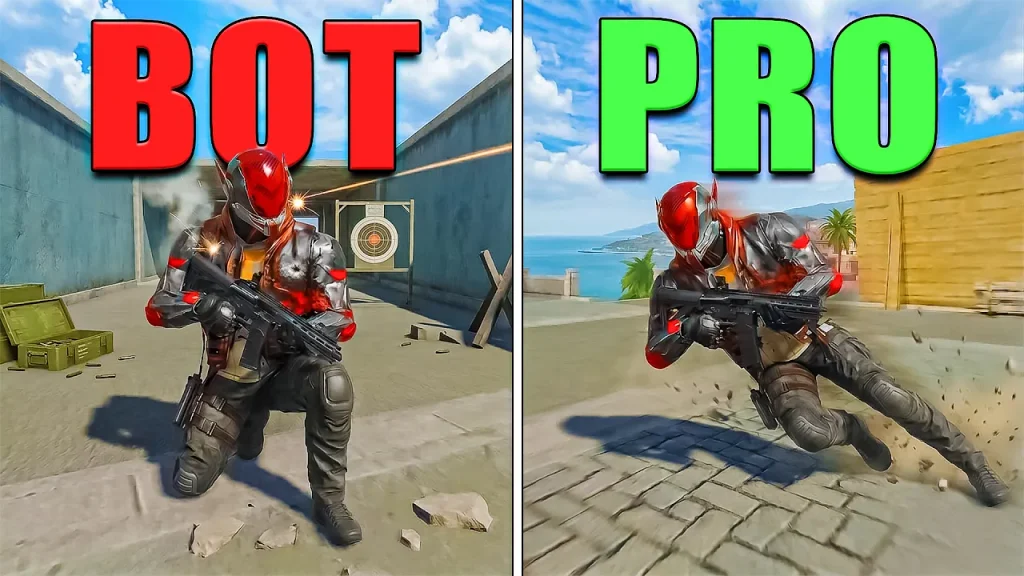
What Causes Blood Strike Stuttering?
Blood Strike stuttering can come from several different sources:
- Unstable frame-time
- CPU bottlenecks
- GPU overload
- Insufficient RAM
- Background applications
- Shader or asset loading
- Overlays
- Graphics driver problems
- Thermal throttling
- Game updates
- Storage performance
- Incorrect display settings
- Very high graphics settings
- Input or rendering conflicts
The first step is determining whether the stutter is caused by your PC or the game itself.
Blood Strike Stuttering vs FPS Drops
These problems are related but not identical.
FPS Drop
Your FPS decreases significantly.
For example:
120 FPS → 50 FPS
Stuttering
Your FPS may remain relatively high, but frame delivery becomes inconsistent.
For example:
120 FPS → 118 FPS → 70 FPS → 119 FPS
That brief frame-time spike can produce a visible hitch.
This is why simply looking at the FPS counter isn’t always enough.
1. Monitor Frame-Time Instead of Only FPS
If you have access to an FPS monitoring tool, monitor frame-time.
A stable game should produce relatively consistent frame times.
If the graph repeatedly contains large spikes, that can explain why Blood Strike feels choppy despite a high average FPS.
This is particularly useful when you experience:
- Camera hitching
- Short freezes
- Delayed movement
- Sudden pauses during combat
- Choppy mouse movement
Do not immediately change ten settings after seeing a spike.
First identify when it happens.
2. Check Whether Blood Strike Stutters During Combat
Play a few matches and pay attention to the exact trigger.
Does Blood Strike stutter:
- When entering a new area?
- During gunfights?
- When many players appear?
- When explosions occur?
- While turning quickly?
- After several minutes?
- Randomly?
The trigger can provide a clue.
Stutter while loading new areas
This may indicate asset or storage-related activity.
Stutter during heavy combat
This may indicate CPU/GPU workload.
Stutter after playing for a long time
Check temperatures and memory usage.
Random stutters everywhere
Investigate drivers, overlays, background applications and game optimization.
3. Check CPU Usage
Open Windows Task Manager while Blood Strike is running.
Monitor:
CPU usage
If CPU usage becomes extremely high during the exact moment of a stutter, your processor may be struggling to keep up.
Close unnecessary programs and test again.
Pay particular attention to:
- Browsers
- Discord
- Recording software
- Windows background processes
- Game launchers
- RGB software
4. Check GPU Usage
Also monitor your GPU.
If the GPU is consistently near full utilization and Blood Strike stutters when graphics-heavy scenes appear, reduce GPU-heavy settings.
Start with:
- Resolution
- Shadows
- Effects
- Other visual effects
Don’t immediately reduce everything to minimum.
Lower one or two settings, test, and compare.
If the stuttering improves significantly, you have useful evidence that GPU workload was involved.
5. Check Your RAM
RAM can become an issue when Blood Strike is running alongside multiple applications.
This is especially important on systems with limited memory.
Before starting the game, close unnecessary programs and check available RAM.
If memory usage is consistently close to the system’s maximum, background applications may be contributing to stuttering.
A recent Blood Strike community discussion about input delay and stuttering included a low-memory PC configuration, with users discussing RAM and hardware limitations as possible contributors.
The exact hardware requirements vary by version and platform, so measure your actual memory usage rather than assuming that more RAM automatically fixes everything.
6. Close Chrome and Other Heavy Applications
A browser with many tabs can consume a surprising amount of memory.
Before playing Blood Strike, temporarily close:
- Chrome
- Edge
- Firefox
- Discord
- Photoshop
- Video editors
- OBS
- Streaming software
- Cloud synchronization applications
Then test again.
If the stuttering disappears, reopen applications individually until you find the source.
7. Disable Overlays
Overlays can sometimes interfere with rendering or consume additional resources.
For troubleshooting, temporarily disable:
- Steam Overlay
- Discord Overlay
- NVIDIA Overlay
- AMD Overlay
- Xbox Game Bar
- Other recording overlays
Restart Blood Strike and test again.
If the problem disappears, enable overlays one at a time to identify which one causes the conflict.
8. Disable V-Sync for Testing
V-Sync can change how frames are presented and can affect perceived input latency.
For troubleshooting, test:
V-Sync: Off
Then restart Blood Strike.
If the game becomes smoother, keep the configuration that produces the best balance between smoothness and tearing for your system.
Don’t treat V-Sync as universally bad. It is a display technology with trade-offs, not a digital demon.
9. Check Your Monitor Refresh Rate
If you own a high-refresh-rate monitor, make sure Windows is actually using it.
Go to:
Settings → System → Display → Advanced display
Check the refresh rate.
For example, if your monitor supports:
144 Hz
but Windows is configured for:
60 Hz
the game may not feel as smooth as expected.
This won’t fix every type of Blood Strike stuttering, but it removes an unnecessary configuration problem.
10. Test Fullscreen and Borderless Modes
Try different display modes:
- Fullscreen
- Borderless
- Windowed
Test each mode separately.
A Blood Strike Steam community discussion about FPS behavior included a player reporting significant changes after switching display mode.
That does not prove one mode is universally faster, but it demonstrates why testing your specific configuration is worthwhile.
11. Lower Graphics Settings Gradually
If your GPU is struggling, lower graphics settings.
A sensible testing order is:
- Shadows
- Effects
- Resolution
- Other GPU-heavy settings
- Texture quality if VRAM is limited
After each change, play the same type of scenario.
If you lower everything at once, you won’t know what actually helped.
12. Don’t Confuse Low FPS With Stuttering
Suppose Blood Strike constantly runs at:
35 FPS
That’s primarily a low-FPS problem.
But if it runs at:
120 FPS
and repeatedly freezes for a fraction of a second, you’re dealing with a frame-time problem.
You may need different solutions.
For low FPS, focus on:
- Graphics settings
- Resolution
- GPU
- CPU
- Thermals
For stuttering, also investigate:
- Frame-time
- Background applications
- RAM
- Drivers
- Overlays
- Storage
- Game updates
13. Check Your GPU Driver
If Blood Strike started stuttering after a graphics driver update, investigate the timing.
If the problem existed before the update, updating may help.
If the problem started immediately afterward, you may need to investigate whether other players with the same GPU are reporting similar problems.
Avoid downloading random “optimized” drivers from third-party websites.
Use your GPU manufacturer’s official driver software.
14. Check for Thermal Throttling
A system can perform well for the first few minutes and then begin stuttering once temperatures rise.
Monitor:
- CPU temperature
- GPU temperature
- Clock speeds
- Fan behavior
If performance drops as temperatures increase, investigate cooling.
Possible causes include:
- Dust buildup
- Poor airflow
- Fan problems
- High ambient temperature
- Aging thermal paste
Don’t assume the game suddenly became worse at exactly the tenth minute. Your CPU may simply be having a small existential crisis.
15. Make Sure Blood Strike Is Not Running From a Slow Drive
If the game is installed on an old mechanical hard drive, storage performance can become relevant when the game loads assets.
If possible, install Blood Strike on an SSD.
An SSD won’t reduce your internet ping, but it can improve loading and reduce some storage-related delays.
If stuttering happens whenever you enter new areas or assets appear, storage activity is worth investigating.
16. Check Your Storage Space
Keep sufficient free space on the drive containing Blood Strike and Windows.
A nearly full drive can create additional system-management overhead.
You don’t need hundreds of gigabytes of empty space, but avoid operating with the drive almost completely full.
17. Verify or Repair the Game Files
If your Blood Strike installation has corrupted or incomplete files, performance and stability can potentially suffer.
Use the repair or verification option provided by your game launcher if available.
After verification:
- Restart the launcher.
- Restart Blood Strike.
- Test again.
If the problem began immediately after an update, this is particularly reasonable to try.
18. Check Whether the Stuttering Started After an Update
This is one of the most important troubleshooting steps.
Ask:
Was Blood Strike smooth before the latest update?
If yes, search recent community discussions.
If many players report:
- Stuttering
- FPS drops
- New input delay
- Freezing
- Increased resource usage
after the same update, the issue may be related to the game version.
Recent Blood Strike community discussions have included reports of major performance changes following updates.
In that situation, endlessly changing Windows settings may accomplish very little.
19. Test Blood Strike Without Recording Software
Recording and streaming software can consume significant CPU, GPU and storage resources.
Temporarily disable:
- OBS
- NVIDIA ShadowPlay
- AMD recording
- Xbox Game Bar recording
- Other capture software
Then test the game.
If Blood Strike becomes smooth, gradually re-enable recording features and identify the setting causing the problem.
20. Check Mouse Polling Rate
Very high mouse polling rates can create additional CPU workload on some systems.
If you are using an unusually high polling rate, test a lower setting.
For example, compare:
8000 Hz
with:
1000 Hz
This isn’t automatically a Blood Strike problem, and lowering polling rate is not a universal solution.
It is simply a useful controlled test if you experience:
- Mouse stuttering
- Camera hitching
- Input delay
- CPU spikes during rapid mouse movement
21. Disable Unnecessary Background Utilities
Some hardware utilities constantly monitor or modify the system.
Examples include:
- RGB software
- Motherboard utilities
- Performance monitoring tools
- Peripheral software
- Third-party system optimizers
Temporarily close them.
If Blood Strike becomes smoother, reopen them individually.
22. Avoid “FPS Booster” Programs
You will find plenty of software promising:
+200 FPS
Zero Input Lag
Zero Ping
These claims deserve skepticism.
Many such programs simply change Windows settings you can change yourself, while others add another background process.
For troubleshooting, keep your system configuration simple.
23. Test With a Clean Background
For a serious troubleshooting test, restart Windows and launch only:
- Blood Strike
- Required launcher
- Essential drivers
Don’t open Chrome, Discord, OBS or other applications.
Play several matches.
If Blood Strike stuttering disappears, the next job is identifying the background program responsible.
Blood Strike Stuttering Troubleshooting Table
| Symptom | First thing to investigate |
|---|---|
| FPS constantly low | GPU/CPU |
| FPS high but game feels choppy | Frame-time |
| Stutter when entering areas | Storage/assets |
| Stutter during fights | CPU/GPU workload |
| Stutter after several minutes | Temperatures |
| Stutter after update | Game optimization |
| Mouse causes hitching | Polling rate/input |
| Stutter disappears when apps close | Background software |
| Stutter only with overlays | Overlay conflict |
| Stutter with recording | Capture software |
| Stutter on Wi-Fi plus ping spikes | Network |
| Stutter with stable ping | PC/game performance |
Blood Strike Stuttering vs High Ping
It is important not to mix these problems.
High Ping
Symptoms:
- Delayed hit registration
- Rubber-banding
- Teleporting players
- Delayed actions
- Ping number increases
Investigate your connection. Explore more about Blood Strike High Ping.
Stuttering
Symptoms:
- Screen briefly freezes
- Camera hitches
- FPS/frame-time becomes unstable
- Game feels choppy
- Ping may remain normal
Investigate your PC and game rendering.
If both happen at the same time, troubleshoot them separately.
For network-related problems, see our [Blood Strike High Ping] article.
For broader troubleshooting, see [Blood Strike Lag Fix].
A Practical Blood Strike Stuttering Test
Instead of changing everything at once, use this test:
Test 1: Clean background
Close all unnecessary applications.
Test 2: V-Sync
Test V-Sync off.
Test 3: Graphics
Reduce shadows and effects.
Test 4: Display mode
Test fullscreen and borderless.
Test 5: Hardware monitoring
Check CPU, GPU, RAM and temperatures.
Test 6: Overlays
Disable every overlay.
Test 7: Game files
Verify or repair the installation.
Test 8: Update history
Determine whether the problem started after a Blood Strike update or driver update.
Record the result after each test.
This creates evidence instead of turning troubleshooting into random button pressing.
Frequently Asked Questions
Why is Blood Strike stuttering even with high FPS?
High average FPS does not guarantee consistent frame delivery. Frame-time spikes can cause visible stuttering even when the FPS counter remains high.
How do I fix Blood Strike stuttering on PC?
Start by checking frame-time, CPU/GPU usage, RAM, temperatures and background applications. Then test V-Sync, graphics settings, display modes, overlays and game files individually.
Why does Blood Strike stutter during fights?
Heavy combat can increase CPU and GPU workload because of effects, players, physics and other game activity. Monitor CPU/GPU usage during the exact moment the stutter occurs.
Can low RAM cause Blood Strike stuttering?
It can contribute if Windows and Blood Strike are competing for limited memory. Close unnecessary applications and monitor RAM usage before deciding that additional memory is required.
Can V-Sync cause Blood Strike stuttering?
V-Sync changes frame presentation and can affect latency and perceived smoothness depending on your hardware and configuration. Test it on and off rather than assuming either setting is always best.
Can an SSD fix Blood Strike stuttering?
An SSD can help with storage-related loading and asset streaming, but it will not fix every type of stuttering. CPU, GPU, RAM, drivers and game optimization can also be responsible.
Why did Blood Strike suddenly start stuttering?
If the game was previously smooth and the problem began after an update, investigate current community reports and patch-related issues. If only your PC is affected, investigate drivers, temperatures, background software and game files.
Final Thoughts
The best Blood Strike stuttering fix starts with identifying the exact moment the game becomes unstable.
If FPS is genuinely low, investigate your hardware and graphics settings.
If FPS is high but the game still feels choppy, investigate frame-time.
If stuttering happens while loading new areas, investigate storage and asset loading.
If it appears after several minutes, check temperatures.
If it started after an update, investigate the game version and current player reports.
And if the problem disappears when you close background software, you have already found an important clue.
The most reliable process is:
Measure → isolate → change one thing → test → repeat.
That method may be less exciting than installing a suspicious “Ultra FPS Booster Pro Max,” but it has the advantage of actually telling you what is wrong. Read about Blood Strike Lag Fix .
Thank You

