
Call of Duty low FPS can be frustrating, especially when your PC should be capable of running the game at a much higher frame rate. You may normally get 120–200 FPS but suddenly drop to 60, 40, or even lower during fights.
Recent player reports show that this is not always caused by weak hardware. Players with high-end CPUs, GPUs and 32 GB of RAM have reported sudden FPS drops, while others found that the problem appeared after a game update.
This guide focuses on diagnosing Call of Duty low FPS, rather than simply telling you to “turn everything to Low.” Because apparently computers enjoy making us prove what the actual problem is first.
Find out Complete Guide on Call of Duty Lag Fix.
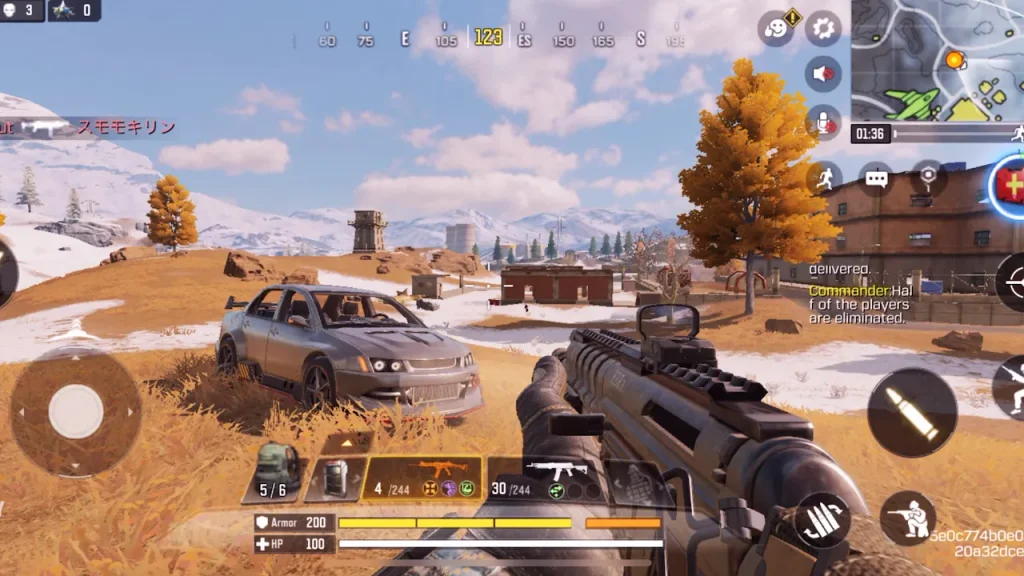
Why Is Call of Duty Running at Low FPS?
There isn’t one universal reason for Call of Duty low FPS.
Common causes include:
- Graphics settings that are too demanding
- GPU limitations
- CPU bottlenecks
- High VRAM usage
- Insufficient RAM
- Thermal throttling
- Background applications
- Outdated or problematic GPU drivers
- Shader compilation
- Frame-generation problems
- Ray tracing
- Incorrect display settings
- Game updates changing performance
- Game-specific optimization problems
The first thing you need to determine is whether your GPU or CPU is actually limiting the game.
Check Your FPS Before Changing Settings
Enable the game’s performance telemetry or use a monitoring tool.
Watch:
- Average FPS
- 1% low FPS
- 0.1% low FPS
- CPU time
- GPU time
- GPU utilization
- VRAM
- RAM
- Temperature
This matters because a player can have an average of 150 FPS but still experience horrible stuttering if the 1% lows collapse.
A recent Call of Duty player reported approximately 170–190 FPS normally but still experienced brief drops to 120–140 FPS every few seconds, producing noticeable micro-stutters.
So don’t judge performance only by the biggest number your FPS counter manages to display.
1. Check Whether Your GPU Is the Bottleneck
Start by watching GPU utilization while playing.
GPU usage near 95–100%
Your GPU is probably working at or near its limit.
Try lowering:
- Resolution
- Shadow quality
- Reflections
- Volumetric effects
- Particle effects
- Ray tracing
- Texture quality if VRAM is limited
Then check whether FPS improves.
GPU usage stays unusually low
If your GPU is sitting around 40–70% while FPS is poor, simply lowering graphics settings may not help.
Investigate:
- CPU usage
- CPU time
- RAM
- Background applications
- Drivers
- Game-specific problems
Community reports have documented Call of Duty systems where FPS suddenly fell while GPU utilization also dropped dramatically, despite the game previously running normally.
2. Check CPU Time
Call of Duty can become CPU-limited, particularly when you’re targeting high FPS.
CPU limitations are more likely when:
- GPU usage is low
- CPU time increases during FPS drops
- Lowering graphics doesn’t help
- FPS falls during large fights
- Many players or effects appear on screen
One Black Ops 7 player reported micro-stutters where CPU time increased while GPU time remained relatively stable.
This is a useful clue because it tells you that lowering GPU settings may not solve the problem.
Explore Call of Duty Performance Issues to Solve performance issues of game.
3. Lower Ray Tracing
If ray tracing is enabled, disable it while troubleshooting.
Ray tracing can significantly increase GPU workload.
More importantly, recent Call of Duty community reports show that disabling ray tracing dramatically improved FPS on at least some systems. One player reported a jump from roughly 59 FPS to 200 FPS after turning ray tracing off.
Your results will depend on your GPU and game version, but this is an easy setting to test.
Start with:
Ray Tracing: Off
Then compare FPS.
4. Check Your Upscaling Setting
Call of Duty provides several rendering and upscaling options.
Depending on your hardware and current game version, you may encounter options such as:
- FidelityFX CAS
- FSR
- DLSS
- Other upscaling technologies
If your FPS suddenly became poor after changing this setting, test another option.
A recent community report involving a high-end AMD system found that switching away from FSR3 and using FidelityFX CAS substantially improved FPS, although the player still reported performance below what they expected.
Don’t assume one upscaler is universally best.
5. Lower Resolution Before Destroying Every Setting
Resolution has one of the biggest impacts on GPU workload.
If you’re playing at:
2560×1440
temporarily test:
1920×1080
If FPS increases dramatically, your GPU is likely the limiting component.
If FPS barely changes, investigate CPU limitations or another bottleneck.
This simple test can tell you more than changing ten settings simultaneously.
6. Check VRAM Usage
VRAM problems can cause performance instability.
If your GPU’s VRAM is close to full, test lower:
- Texture resolution
- Texture streaming settings
- Resolution
- Other VRAM-heavy settings
Don’t automatically set the game’s VRAM allocation to 100%.
The appropriate setting depends on your GPU and what else is using VRAM.
Also remember that VRAM usage and GPU utilization are different things.
7. Check On-Demand Texture Streaming
Texture streaming can affect both network usage and resource behavior.
If you’re experiencing performance or packet-related problems, test the game’s on-demand texture streaming settings.
Recent Warzone community reports have described performance problems following updates where texture-streaming settings changed unexpectedly.
Because these settings can change after updates, check them manually instead of assuming your previous configuration survived the patch.
8. Don’t Ignore Your RAM
Modern Call of Duty games can be demanding on system memory.
If you’re using:
8 GB RAM
and running:
- Chrome
- Discord
- OBS
- Game launchers
- Background utilities
you can quickly run into memory pressure.
With 16 GB or more, you have more room, but you should still check actual usage.
If RAM is nearly full when the FPS drops, close unnecessary programs and retest.
9. Close Background Applications
Before changing Windows registry settings or BIOS options, close unnecessary applications.
Test with:
- Chrome closed
- Discord overlay disabled
- OBS closed
- Cloud synchronization paused
- Other game launchers closed
- Recording software disabled
If FPS improves, reopen programs individually to find the source.
A 2026 forum discussion about Warzone performance also recommends checking drivers and closing unnecessary background applications when low settings don’t resolve stuttering.
10. Check Your GPU and CPU Temperatures
Thermal throttling can cause Call of Duty low FPS after your system has been running for a while.
Monitor:
- CPU temperature
- GPU temperature
- CPU clock
- GPU clock
A useful clue
If you start at:
150 FPS
and after 20 minutes you’re at:
90 FPS
while temperatures have risen substantially, investigate cooling.
Check:
- Dust buildup
- Fan operation
- Laptop cooling
- Case airflow
- CPU/GPU thermal behavior
11. Make Sure Your Monitor Is Running at the Correct Refresh Rate
If your monitor supports:
144 Hz, 165 Hz, 240 Hz
but Windows is set to:
60 Hz
your experience won’t match what the hardware can deliver.
Go to Windows display settings and confirm the correct refresh rate.
Also check the refresh-rate option inside Call of Duty.
12. Disable V-Sync While Testing
For competitive performance testing, start with:
V-Sync: Off
V-Sync can introduce additional latency and may interact with frame-rate limits.
If you use FreeSync or G-Sync, configure your setup according to your monitor and GPU rather than blindly enabling or disabling every synchronization option.
13. Use a Sensible FPS Cap
Unlimited FPS isn’t always the smoothest option.
If your system constantly fluctuates between:
100–180 FPS
you may get better frame consistency by choosing a cap that your PC can maintain.
For example:
120 FPS stable
can feel better than:
180 → 110 → 170 → 95 FPS
The goal is consistent frame delivery, not winning a screenshot contest with the FPS counter.
14. Check Your GPU Driver
Update your NVIDIA or AMD graphics driver through the official software.
Drivers can affect:
- FPS
- Stuttering
- Game compatibility
- Crashes
- Rendering
However, if Call of Duty low FPS began immediately after a driver update, consider testing another driver version rather than assuming the newest one must be better.
Recent players have reported situations where updating drivers did not resolve sudden FPS problems, which is another reason not to treat drivers as the automatic answer.
15. Verify Game Files
If the problem started after an update or crash, verify the game installation.
This can help when files became:
- Corrupted
- Incomplete
- Incorrectly updated
Use your launcher’s official Verify/Repair function.
However, don’t expect verification to fix a game-wide performance regression affecting thousands of players.
16. Watch for Problems After Game Updates
This is particularly important for Call of Duty.
Multiple community reports have described FPS problems appearing immediately after updates.
For example, one Warzone discussion reported players dropping from around 120 FPS into the 60–70 FPS range after a season update, with some users saying changing graphics settings and drivers didn’t resolve the problem.
Another 2026 report described players experiencing FPS drops over time after a seasonal update, including systems with an RTX 5070 Ti laptop GPU and 32 GB RAM.
If the problem appeared immediately after a patch, check current community reports before spending hours modifying your PC.
17. Test With Ray Tracing and Frame Generation Off
When diagnosing Call of Duty low FPS, establish a clean baseline.
Temporarily turn off:
- Ray tracing
- Frame generation
- Excessive visual effects
- V-Sync
Then test native rendering or a simple upscaling configuration.
Once the game becomes stable, enable features individually.
This makes it easier to identify what actually affects performance.
18. Don’t Copy Random Config Files
You will find guides telling you to edit configuration files and change:
- Renderer worker count
- Video memory scale
- CPU core settings
- Windows registry values
Some players report improvements from these changes, but configuration values depend heavily on the hardware and game version.
Older Call of Duty forum discussions, for example, contain recommendations to manually modify VideoMemoryScale and RendererWorkerCount.
I would not make these changes your first-line solution.
First use the game’s own settings and measurable telemetry.
Call of Duty Low FPS Quick Diagnostic Table
| Symptom | What to test |
|---|---|
| GPU 95–100% | Lower resolution/settings |
| GPU 40–70% + low FPS | Check CPU and background apps |
| CPU time spikes | Investigate CPU bottleneck |
| VRAM nearly full | Lower textures |
| FPS drops after 20 minutes | Check temperatures |
| FPS suddenly drops after update | Check community reports |
| Ray tracing enabled | Disable it |
| FSR/frame generation causing problems | Test alternative/off |
| FPS high but game feels choppy | Check 1% lows |
| Every game has low FPS | Investigate hardware/driver |
| Only Call of Duty has low FPS | Investigate game-specific issue |
Frequently Asked Questions
Why is Call of Duty low FPS on a good PC?
A powerful PC does not guarantee stable FPS. CPU bottlenecks, game updates, ray tracing, VRAM limits, drivers, background applications and game-specific optimization can all cause performance problems.
Why does my Call of Duty FPS drop during fights?
Large fights increase CPU and GPU workload because of players, effects, explosions, physics and other objects. Check CPU/GPU time during the exact moment the FPS drops.
Why does lowering graphics not fix Call of Duty low FPS?
If the GPU isn’t the bottleneck, lowering graphics may produce little improvement. Check CPU time, GPU utilization, RAM, VRAM and frame-time behavior.
Can ray tracing cause low FPS in Call of Duty?
Yes. Ray tracing can substantially increase GPU workload. It is one of the first settings worth disabling when troubleshooting low FPS.
Why did my Call of Duty FPS suddenly drop after an update?
Updates can modify graphics settings, shaders, assets or rendering behavior. If multiple players report the same problem after the same update, the cause may be game-side rather than your hardware.
Is 16 GB RAM enough for Call of Duty?
16 GB can be a reasonable baseline, but actual requirements vary by the specific Call of Duty title, Windows usage and background applications. Monitor memory usage rather than relying only on the amount installed.
Final Call of Duty Low FPS Fix
If you’re experiencing Call of Duty low FPS, don’t immediately put every setting on Low.
Follow this order:
- Check FPS and 1% lows.
- Monitor GPU utilization.
- Monitor CPU time.
- Check VRAM and RAM.
- Disable ray tracing.
- Test your resolution.
- Test upscaling options.
- Disable frame generation temporarily.
- Check temperatures.
- Close background applications.
- Check your monitor refresh rate.
- Disable V-Sync while testing.
- Try a stable FPS cap.
- Check GPU drivers.
- Verify game files.
- Check whether the problem began after a game update.
The key is to identify the bottleneck before changing settings. If the GPU is at 99%, lowering GPU-heavy settings makes sense. If the GPU is sitting at 50% while CPU time spikes, lowering graphics may accomplish almost nothing.
Thank You


Pingback: Call of Duty Not Launching: Fix Startup Crashes & Black Screen in 2026