
Delta Force crashing can happen when launching the game, during shader compilation, while loading into a match, after several minutes of gameplay, or immediately after an update. Some players see the game close to desktop, while others experience a complete PC freeze or restart.
Community reports show that this isn’t one single problem. Players have reported crashes during shader loading, crashes after entering matches, DirectX-related problems, driver failures, anti-cheat conflicts, and even full system crashes. A 2026 Intel community report, for example, described a VIDEO_TDR_FAILURE occurring when entering a Delta Force match after a game update, while other stress tests worked normally.
So instead of giving you the usual “update everything and reinstall the game” article, this guide follows the problems players are actually reporting and works from the safest, most likely fixes toward more advanced troubleshooting. Explore full Solutions on Delta Force Stuttering
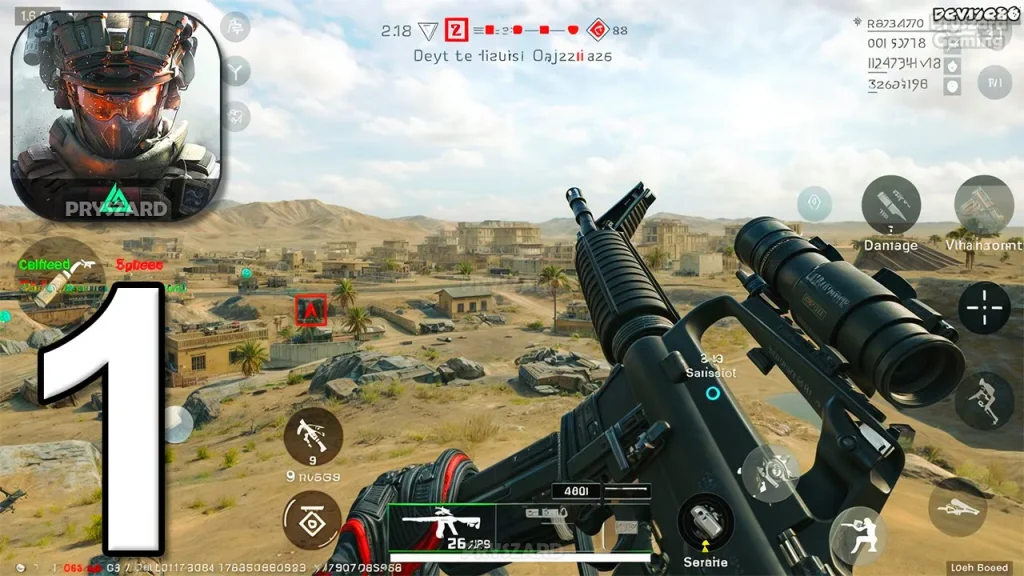
Why Is Delta Force Crashing?
The most common causes include:
- Corrupted game files
- GPU driver problems
- DirectX problems
- Shader compilation failures
- Unstable RAM
- GPU overclocking or undervolting
- High memory or virtual-memory usage
- Anti-cheat conflicts
- Overlay or background-software conflicts
- Windows system-file problems
- SSD or storage problems
- Overheating
- Problems introduced by a game update
The timing of the Delta Force Crashing is one of the most useful clues.
| When it crashes | What to investigate first |
|---|---|
| Immediately after Launch | Driver, files, anti-cheat, configuration |
| During shader compilation | DirectX, driver, memory |
| Around 80–99% loading | Files, shaders, driver |
| When entering a match | GPU driver, anti-cheat, game update |
| After 10–30 minutes | Temperature, RAM, GPU stability |
| Entire PC restarts | Hardware, driver, PSU, thermal stability |
| Started after update | Game/driver compatibility |
1. Restart the PC Before Trying Advanced Fixes
Start with a normal Windows restart.
This can clear:
- Stuck game processes
- Driver states
- Memory allocation
- Background services
- Anti-cheat processes
If Delta Force freezes completely, use Task Manager if Windows still responds.
Press:
Ctrl + Shift + Esc
Find Delta Force and select End Task.
If the entire computer becomes unresponsive, don’t repeatedly force power-offs unless necessary. A complete system lockup needs a different investigation from an ordinary game crash.
2. Verify Delta Force Game Files
Corrupted files are one of the first things worth checking.
A Steam discussion about Delta Force crashing around 80% during loading included a player reporting that Verify Integrity of Game Files solved the problem. Another suspected cause was a bad graphics driver.
On Steam
Go to:
Library → Delta Force → Properties → Installed Files → Verify integrity of game files
Let the process finish completely.
Then restart the game.
Why this matters
A damaged file can cause:
- Startup crashes
- Loading crashes
- Missing assets
- Crashes when entering matches
- Shader-related problems
Don’t reinstall the entire game before testing file verification. Your internet connection has suffered enough.
3. Test DirectX 11 If Delta Force Crashes During Shader Loading
This is one of the more interesting findings from player reports.
A Steam discussion describes Delta Force crashing to desktop during the shader-loading screen. A player reported that adding:
-dx11
to the game’s launch options allowed the game to run, and another player confirmed the same workaround.
How to test it on Steam
- Open Steam.
- Go to your Library.
- Right-click Delta Force.
- Select Properties.
- Find the launch-options field.
- Enter
-dx11. - Start the game.
Important
Treat this as a diagnostic workaround, not a universal permanent fix.
The same Steam discussion includes another player who said -dx11 didn’t solve their later crash.
If DirectX 11 stops the crashes, that gives you an important clue that the problem may involve the graphics API, driver, shader compilation, or a specific DirectX configuration.
4. Check Your GPU Driver
A graphics driver can cause Delta Force to crash even when other games appear stable.
Update your NVIDIA, AMD or Intel graphics driver.
However, there’s an important exception.
If the crashes started immediately after a driver update, test a previous stable driver.
A Microsoft Q&A report involving Delta Force crashes identified an NVIDIA nvlddmkm.sys driver error and recommended removing the current driver with DDU and testing an earlier NVIDIA driver.
A more recent Intel community report also documented a Delta Force crash after a game update involving VIDEO_TDR_FAILURE and igdkmdnd64.sys.
This is why “always install the newest driver” isn’t a complete troubleshooting strategy.
5. Check Whether the Crash Happens During Shader Compilation
Shader compilation deserves special attention.
Some players have reported Delta Force crashing while shaders are being loaded, including crashes close to the end of the process.
If this is your situation:
- Restart Windows.
- Verify game files.
- Update or test another GPU driver.
- Try
-dx11. - Avoid aggressive GPU overclocking.
- Check RAM stability.
- Check available virtual memory.
- Let shader compilation finish before entering a match.
If your entire PC restarts during shader compilation, that’s more serious than a normal game crash. One Steam report describes the machine restarting at 99% shader compilation, which prompted discussion around storage or power hardware.
6. Disable GPU Overclocking and Undervolting
If you’re running a custom GPU profile, temporarily return it to stock settings.
Test without:
- GPU overclock
- GPU undervolt
- Custom power limits
- Aggressive fan profiles
A game can expose instability that synthetic benchmarks don’t.
If Delta Force becomes stable at stock GPU settings, you’ve learned something useful.
Don’t immediately blame the game because your overclock survives every other application. Different games stress hardware differently.
7. Check RAM and Virtual Memory
Memory problems can produce seemingly random crashes.
Check whether you have:
- Limited RAM
- Unstable XMP/EXPO settings
- Very high RAM usage
- A small Windows page file
- Multiple memory-heavy programs running
A Steam discussion about recurring Delta Force crashes specifically mentioned RAM, virtual memory and conflicting software as possible areas to investigate.
If you have enabled XMP or EXPO and crashes started afterward, temporarily test with default memory settings.
Also avoid disabling the Windows page file just because an optimization video told you that paging is evil. It isn’t.
8. Disable Overlays and Background Software
Temporarily disable:
- Discord Overlay
- Steam Overlay
- NVIDIA Overlay
- AMD Overlay
- Xbox Game Bar
- MSI Afterburner/RivaTuner
- Recording software
- RGB utilities
Then test Delta Force.
If the game stops crashing, enable the applications one at a time.
This is especially useful when the crash happens:
- When opening an overlay
- When recording starts
- During Alt+Tab
- When entering a match
9. Check Anti-Cheat Conflicts
Delta Force uses anti-cheat software, so conflicts involving security software or system-level utilities can produce unusual behavior.
A Reddit report described repeated full-PC crashes and suggested a workaround involving Windows Core Isolation and CPU-core management, with the poster attributing the behavior to an interaction involving ACE Anti-Cheat. This was a community-reported workaround, not an officially established universal solution, so treat it cautiously.
Don’t disable Windows security features simply because one Reddit user says it fixed their computer.
First try:
- Updating Windows
- Restarting
- Closing conflicting utilities
- Removing unnecessary low-level system tools
- Verifying game files
- Testing stock hardware settings
Security should not be the first casualty of troubleshooting.
10. Check Your SSD and Installation Location
Storage can matter during shader compilation and asset loading.
Make sure:
- The SSD has adequate free space.
- The drive is healthy.
- Windows isn’t reporting storage errors.
- The game installation isn’t corrupted.
One Steam discussion reported that moving Delta Force to an SSD resolved a startup/shutdown problem for a player.
If you’re using a mechanical hard drive, moving the game to a healthy SSD is worth testing.
11. If Delta Force Crashes When Entering a Match
This deserves separate attention.
A Microsoft Q&A report described Delta Force running normally until the player entered a match, where it crashed. The reported Event Viewer errors included an NVIDIA graphics-driver component and an anti-cheat-related issue.
If your crash happens exactly when entering a match, test:
- GPU driver.
- Game-file verification.
- Stock GPU settings.
- Lower graphics settings.
- Disable overlays.
- Check anti-cheat conflicts.
- Check Windows Event Viewer.
This is more useful than simply reinstalling the game.
12. Check Event Viewer After a Crash
If ordinary troubleshooting doesn’t identify the problem, Windows Event Viewer can provide useful clues.
Open:
Event Viewer → Windows Logs → System
Look around the exact time of the crash.
Look for references to:
- Display drivers
- Hardware errors
- Kernel events
nvlddmkmigdkmdnd64amdkmdag- Anti-cheat components
Don’t assume every error listed at the same time caused the crash. Event Viewer can contain plenty of unrelated noise because apparently computers enjoy documenting their suffering.
13. Check CPU and GPU Temperatures
If Delta Force runs normally for 20–30 minutes and then crashes, monitor temperatures.
Check:
- CPU temperature
- GPU temperature
- GPU hotspot
- CPU clock
- GPU clock
- Fan speed
If temperatures become excessive before the crash, investigate:
- Dust
- Case airflow
- Cooling fans
- Thermal throttling
- Laptop cooling
If multiple games also crash under heavy load, hardware stability becomes more likely.
14. Check Whether Other Games Crash
This is an excellent diagnostic test.
Only Delta Force crashes
Investigate:
- Game files
- Drivers
- DirectX
- Shaders
- Anti-cheat
- Configuration
- Game updates
Multiple demanding games crash
Investigate:
- GPU
- RAM
- CPU
- PSU
- Temperatures
- Windows
- Hardware stability
If Delta Force is the only game affected, don’t immediately replace your GPU.
15. Check Whether an Update Started the Problem
Ask:
Did Delta Force work correctly before the latest update?
This matters because community reports show update-related crashes.
An Intel community report from May 2026 described repeated crashes when entering Delta Force matches after a recent update, while other GPU stress tests reportedly worked normally.
There are also player reports of widespread console crashes following recent updates in August 2026.
If many players experience the same problem after a patch, the solution may require a developer-side fix rather than another Windows tweak.
Delta Force Crashing Troubleshooting Table
| Problem | What to try first |
|---|---|
| Crashes at startup | Verify files + GPU driver |
| Crashes during shader loading | -dx11 + driver check |
| Crashes around 80–99% loading | Files + shaders + memory |
| Crashes entering match | Driver + anti-cheat + files |
| Crashes after 20 minutes | Temperatures + stability |
| DirectX-related crash | Driver + stock GPU settings |
| Whole PC restarts | Hardware/power/driver |
| Started after update | Check current player reports |
| Only Delta Force crashes | Game-specific troubleshooting |
| Multiple games crash | Hardware/system investigation |
Frequently Asked Questions
Why does Delta Force keep crashing?
Common causes include corrupted files, graphics drivers, DirectX problems, shader compilation, unstable RAM, GPU overclocking, anti-cheat conflicts, background software and game updates.
Why does Delta Force crash during shader compilation?
Shader compilation can put a significant workload on the CPU, memory and GPU. Driver problems, unstable hardware or game-specific shader issues can cause crashes during this stage. Some Steam users have reported crashes specifically while loading shaders.
Can DirectX 11 fix Delta Force crashing?
It can help some configurations. Steam users have reported that adding -dx11 stopped shader-loading crashes, although other users reported that it didn’t solve their particular problem.
Why does Delta Force crash when I enter a match?
Possible causes include GPU-driver problems, anti-cheat conflicts, graphics settings, corrupted assets or an issue introduced by an update. A reported case involving a match-entry crash identified both an NVIDIA driver error and an anti-cheat-related error.
Can RAM cause Delta Force crashing?
Yes. Unstable RAM, insufficient memory or virtual-memory problems can contribute to crashes. Testing default RAM settings and ensuring Windows has a functioning page file can help isolate memory-related instability.
Why does Delta Force crash after an update?
An update can change shaders, graphics behavior, anti-cheat components or other game systems. If the crashes begin immediately after an update, check whether other players with similar hardware are reporting the same problem before assuming your PC is defective.
Final Delta Force Crashing Fix Checklist
If you’re experiencing Delta Force crashing, use this order:
- Restart Windows.
- Verify Delta Force game files.
- Check whether the crash happens during shader compilation.
- Test
-dx11if shader loading causes the crash. - Update or roll back your GPU driver.
- Disable GPU overclocking and undervolting.
- Test RAM at default settings.
- Check virtual memory.
- Disable overlays.
- Close conflicting background utilities.
- Check anti-cheat-related conflicts.
- Make sure the game is installed on a healthy SSD.
- Check CPU/GPU temperatures.
- Look at Event Viewer after a crash.
- Test another demanding game.
- Check whether the problem started after a game update.
- Investigate hardware if the entire PC restarts.
- Reinstall the game only after the other tests fail.
The most important thing is to match the solution to the crash pattern.
A game that crashes during shader compilation is not necessarily suffering from the same problem as a game that crashes after 20 minutes. Likewise, a complete PC restart should not be treated as an ordinary crash-to-desktop.
That distinction is what makes troubleshooting useful instead of producing the usual 47-item list of magical Windows tweaks.
Explore Complete Detail Guide About:
Delta Force Problems and Solutions
Delta Force Lag Fix
Delta Force High Ping
Delta Force Low FPS
Thank You

